
The Service is the destination where you want to target the test. For example:
- For IVR, WhatsApp, or SMS, you will need a phone number.
- For chat, you will need a chat API URL.
- For email, you will need an email ID.
Steps to Create a Service: #
- Click on the Service section on the left-hand side.
- Select Create Service.

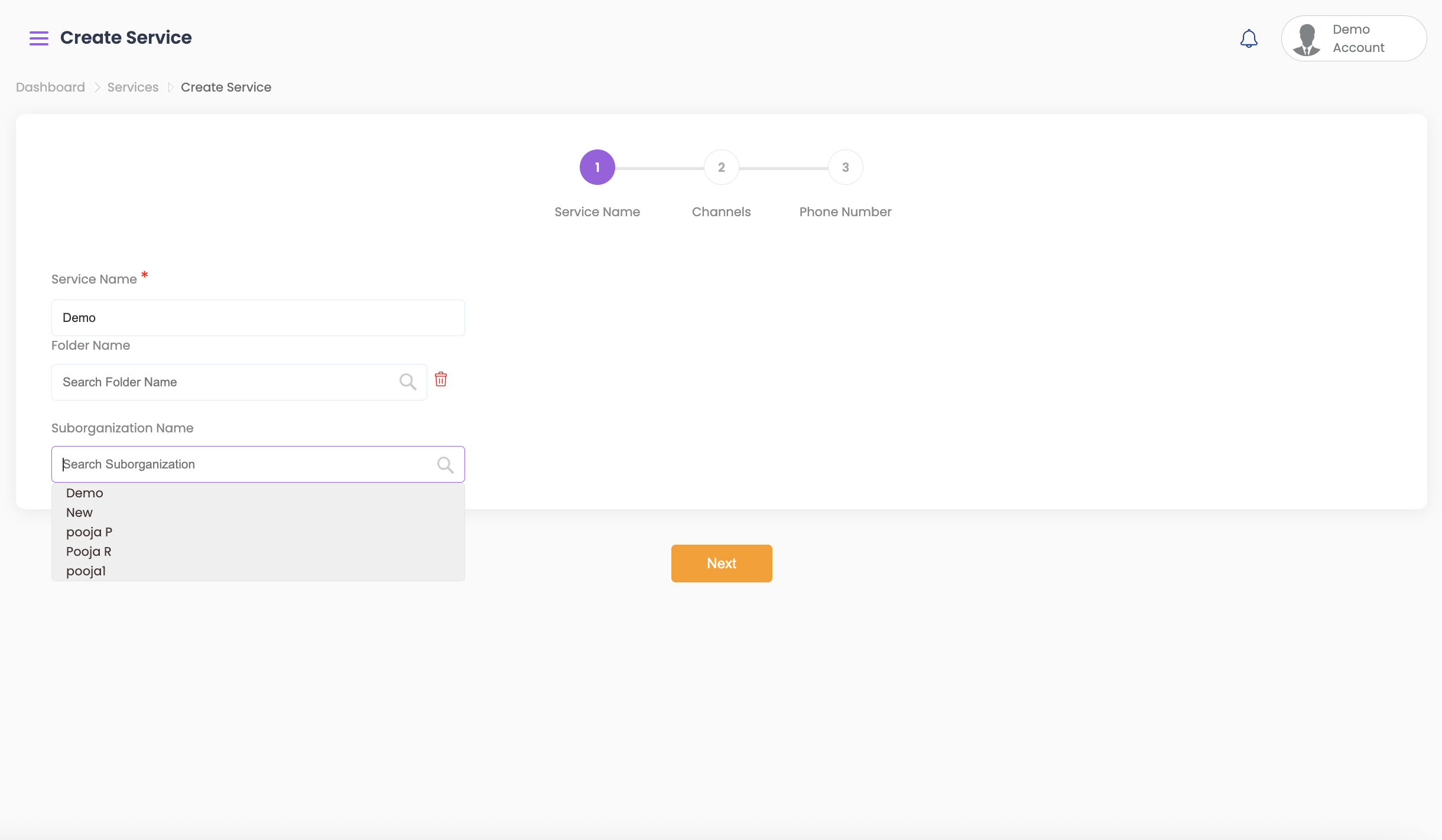
- Give the service a meaningful name.
- Select from the Service Folder or Sub-Org if you wish to add the service in a folder, then click Next.
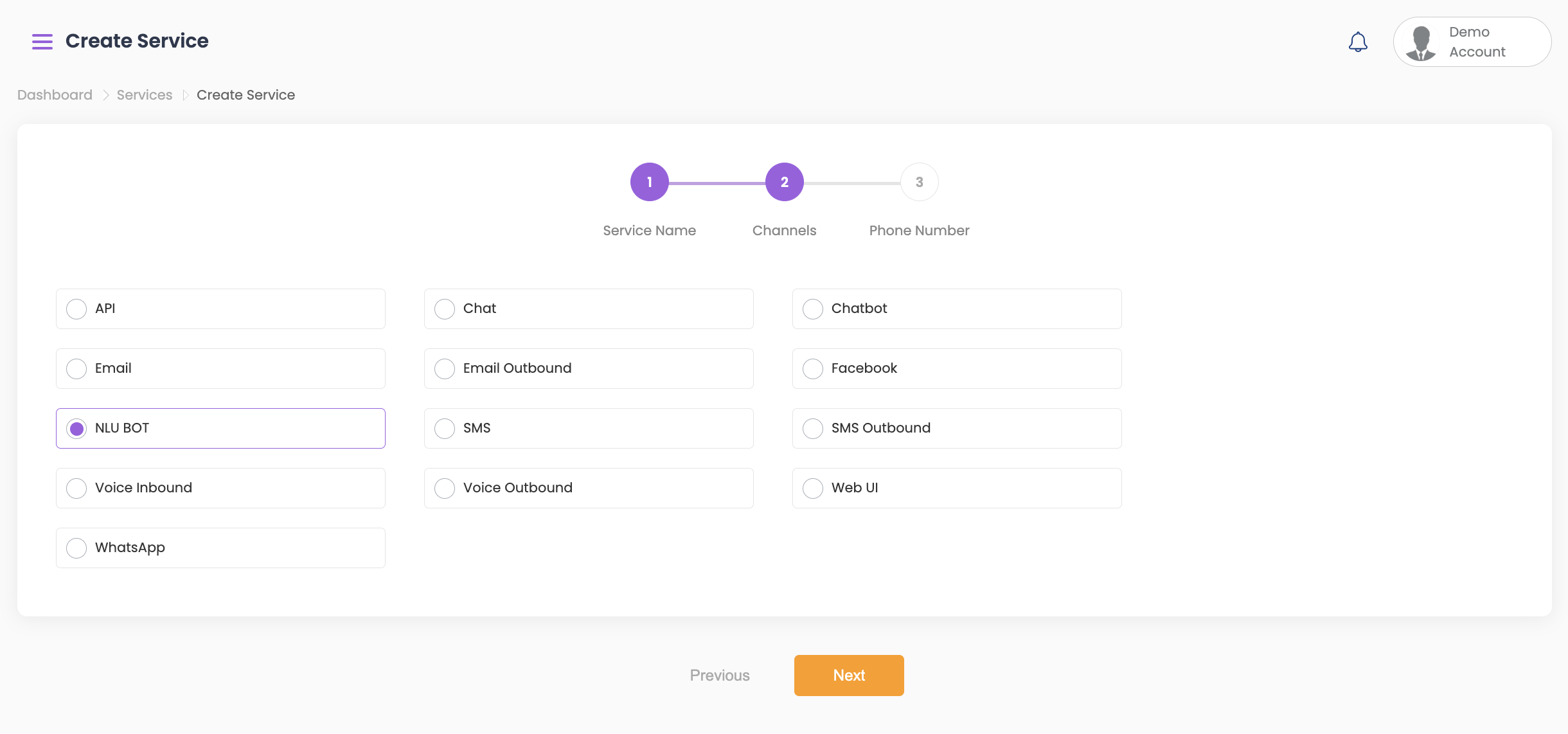
- Select the required Channel and click Next.
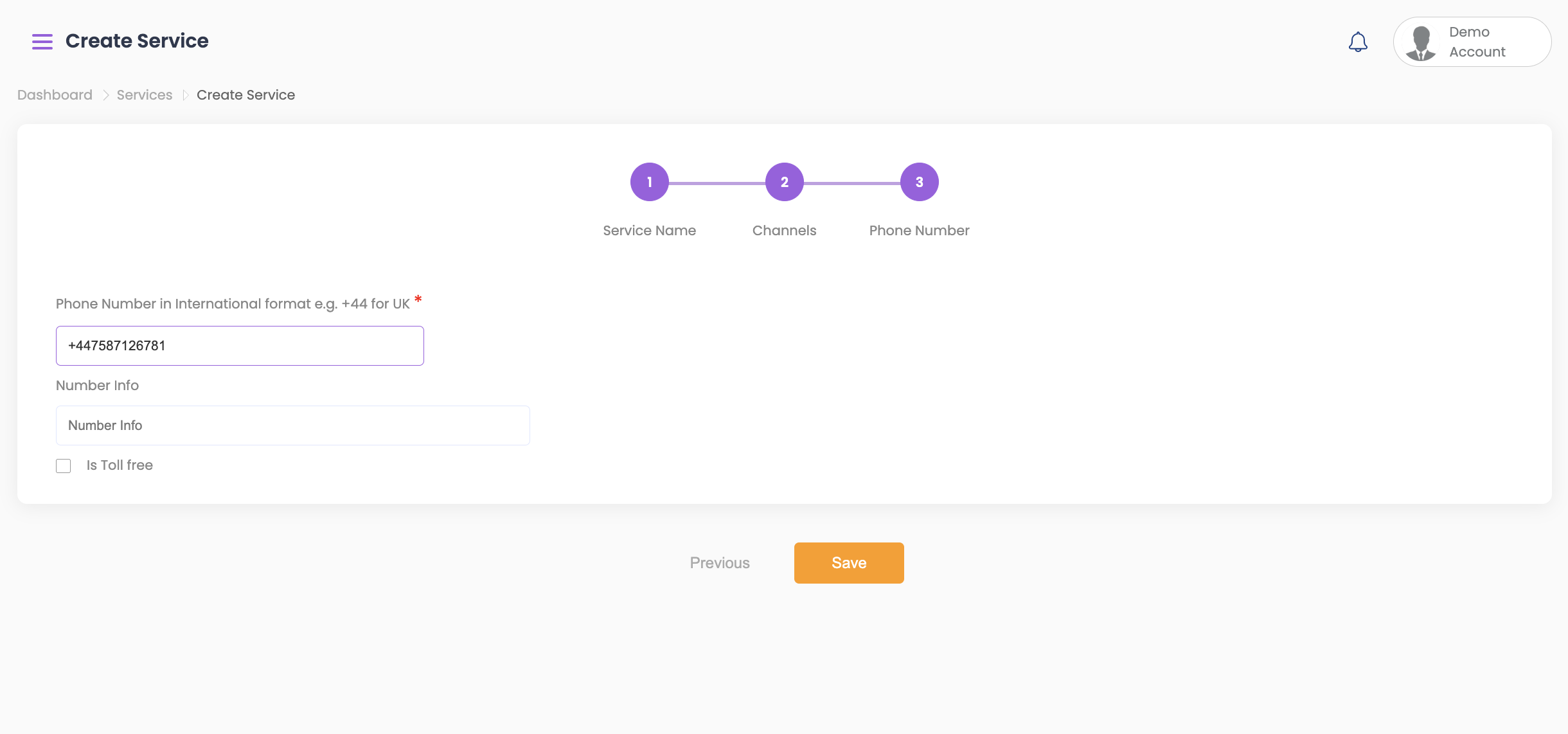
- After clicking Next, enter the required details.
- Example:
- If a phone number is required, include the country code (e.g., +44 for UK, +1 for USA).
- Enter the destination phone number for the test.
- Click Save.
Supported Channels in QuickTest: #
| Category | Supported Channels |
|---|---|
| API | API |
| Email, Genesys Cloud Email, Five9 Email, NICE Email, ElasticCX CCaaS Email | |
| NLU BOT | NLU BOT |
| Voice Inbound | Genesys Cloud Voice, Five9 Voice Inbound, Amazon Connect, NICE Voice Inbound, ElasticCX CCaaS Voice Inbound, Webex Connect Voice Inbound |
| WhatsApp, Genesys Cloud WhatsApp | |
| Chat | Genesys Chat, Genesys Cloud Chat, Five9 Chat, Genesys Cloud Web Messaging, Amazon Connect Chat, Elastic CXaaS Chat |
| Email Outbound | Genesys Email Outbound, ElasticCX CCaaS Email Outbound |
| SMS | SMS, Genesys Cloud SMS, ElasticCX CCaaS SMS Inbound |
| Voice Outbound | Five9 Voice Outbound, Genesys Voice Outbound, NICE Voice Outbound, ElasticCX CCaaS Voice Outbound, Amazon Connect Voice Outbound, ElasticCX CCaaS Campaign |
| Chatbot | Google Dialogflow, Genesys Cloud Chatbot, Google Dialogflow ES, Amazon Lex |
| SMS Outbound | Genesys SMS Outbound, ElasticCX CCaaS SMS Outbound |
| WebUI | WebUI |


