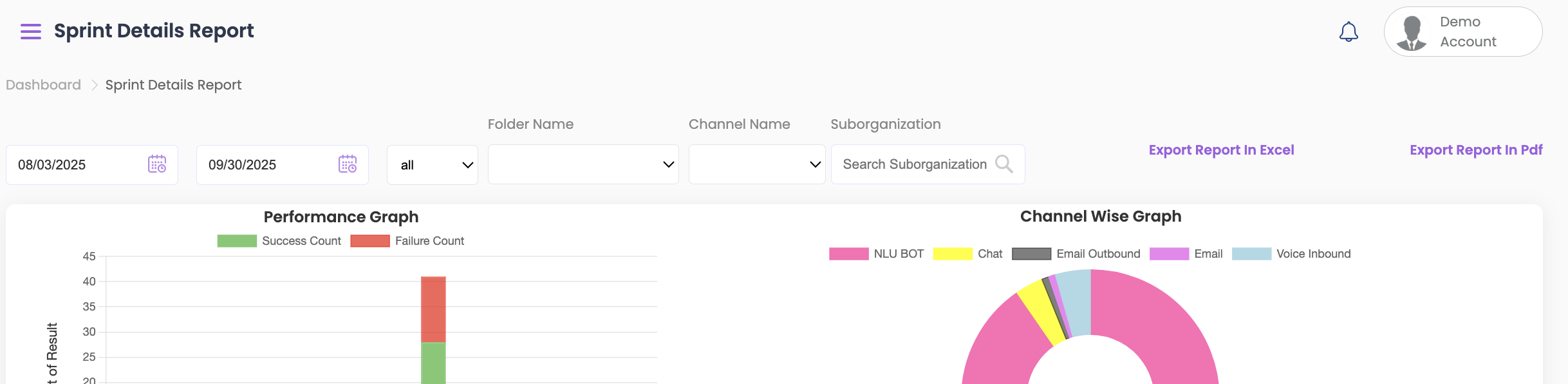
The Sprint Details Report offers detailed information on each test case within a sprint, including test outcomes and history.
Viewing and Filtering Overall Results #
- Select the start and end dates from the top to view the testing results.
- To further filter by Folder Name, Channel Name, or Sub-Org, select the required option from the dropdown.
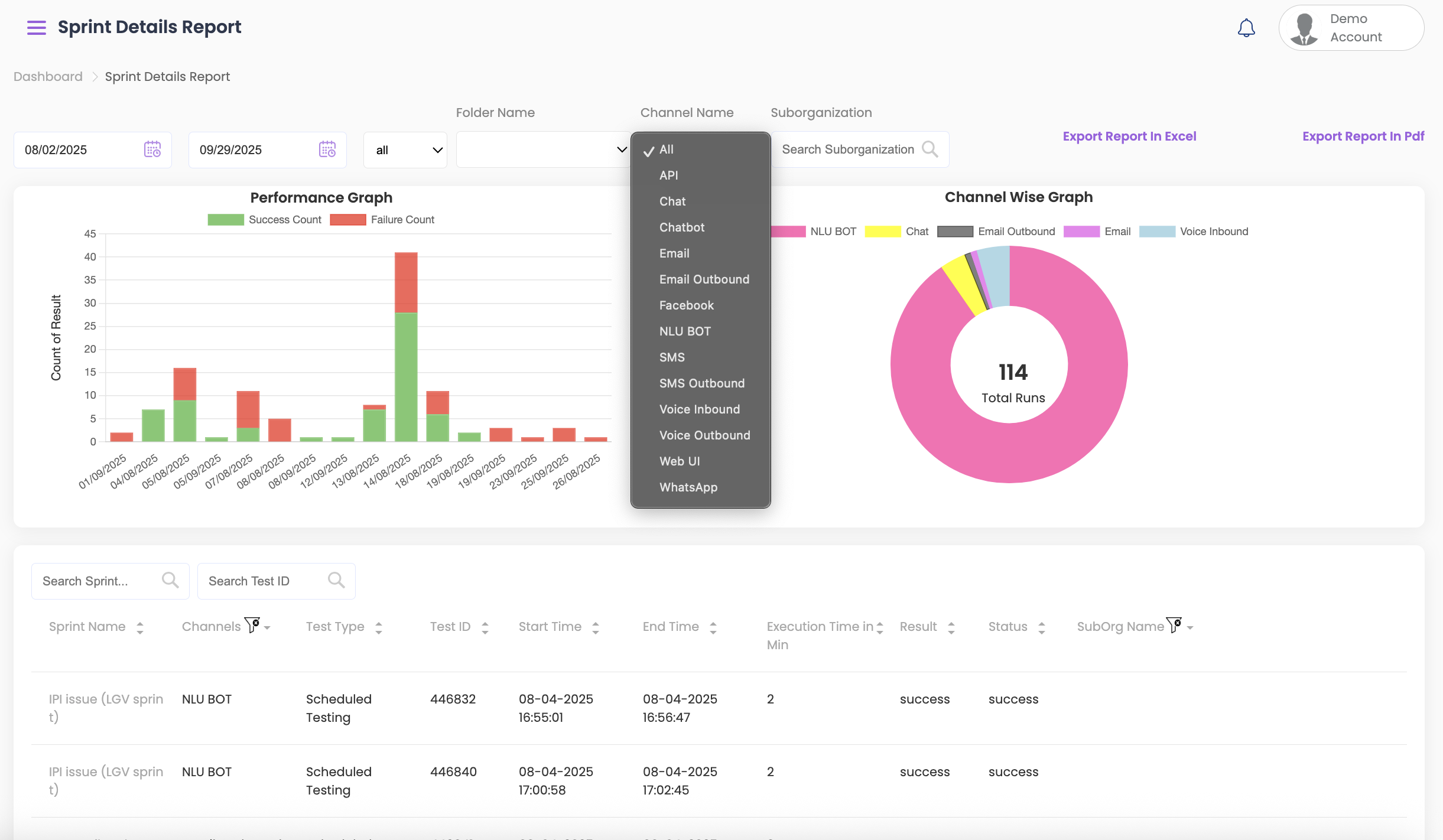
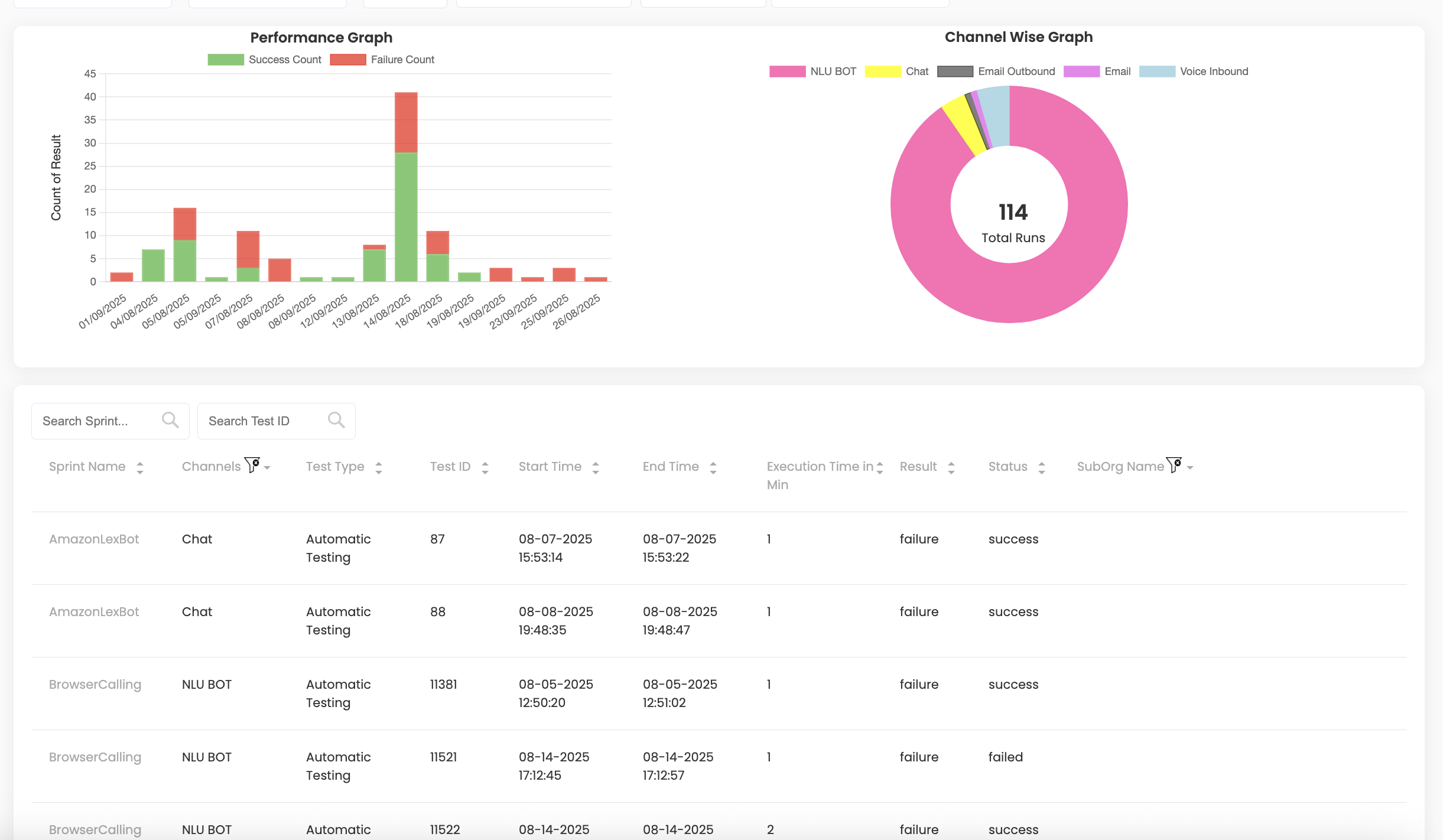
- Below the graphs, the following information is displayed:
- Sprint Name
- Channels
- Test Type
- Test ID
- Start and End Time
- Execution Time in Min
- Result
- Status (If it failed or was successful)
- Sub-org name, if it is part of any
Viewing Individual Sprint Results #
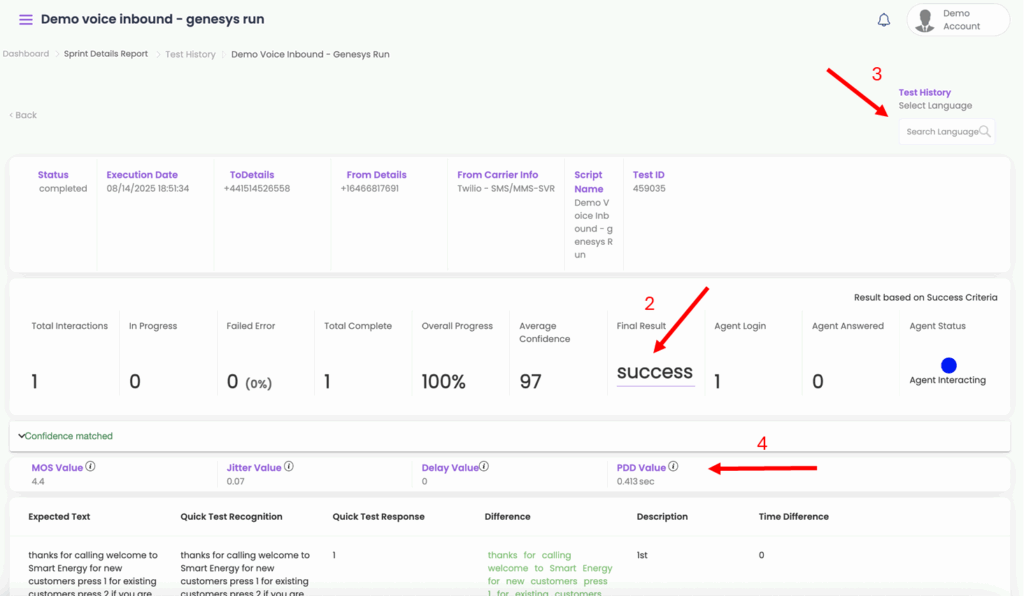
- To view the test history of any test result, click on Sprint Name. A detailed report of the sprint will be displayed including:
- All prompts and their status
- Execution date & time
- To/From details, carrier info, script name, and Test ID
- Click on Success/ Failure under Final Result to view the reason for sprint failure (based on not meeting the selected success criteria).
- You can convert test results from one language to another (e.g., English to Spanish) using the Select Language dropdown.
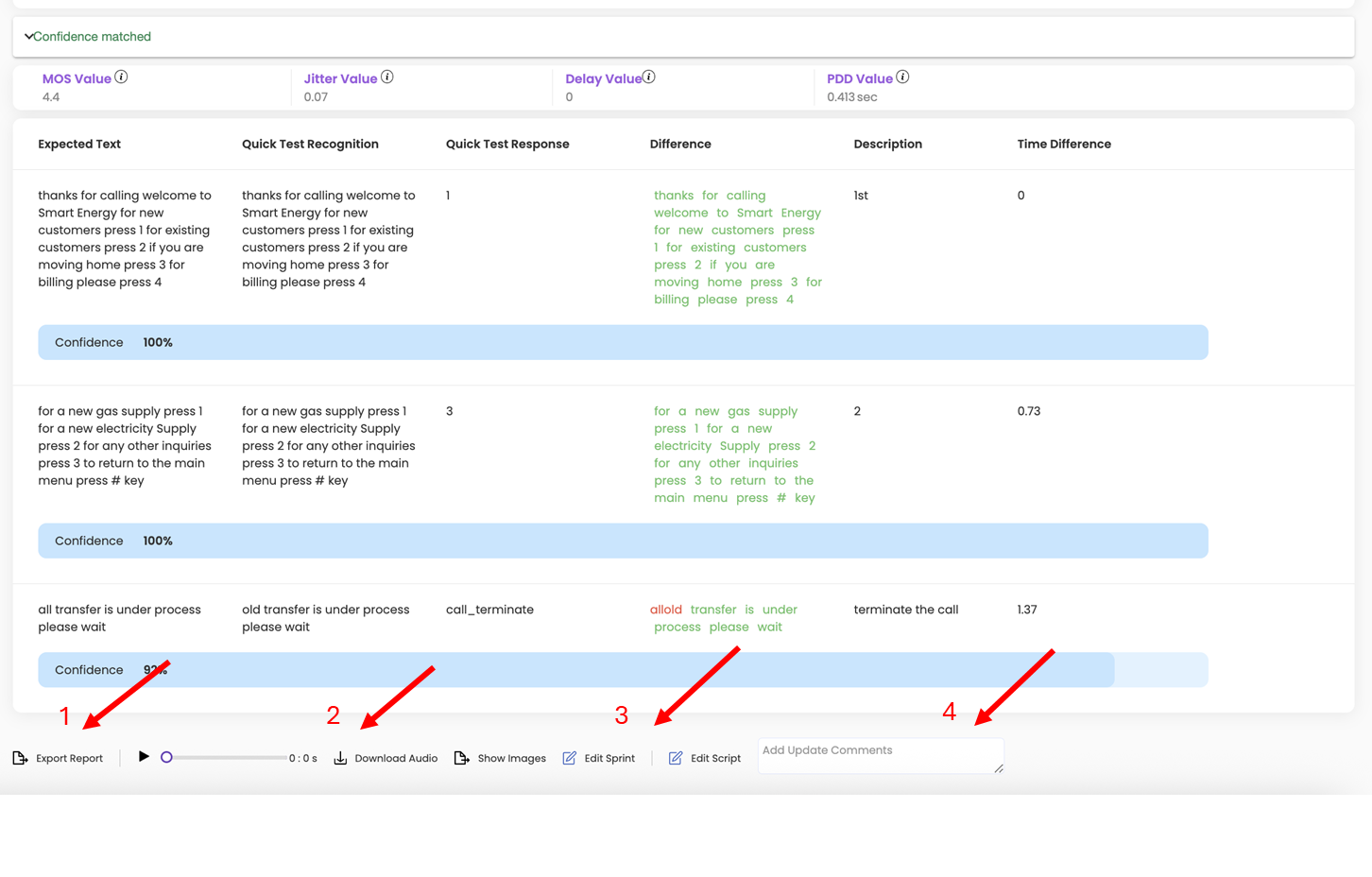
- You can also view call quality details such as:
- MOS value – Audio quality rating (1–5); higher scores indicate clearer audio
- Jitter value – Measures inconsistency in audio packet arrival; high jitter can cause choppy or distorted audio
- Delay value – Time taken for audio to travel between participants; high delays can cause interruptions
- PDD – Time between dialing a number and the call ringing; lower PDD means faster call setup
Additional Actions #
- Download test results using Export Report.
- Play audio recordings via Listen Audio or download them via Download Audio (voice channels only).
- Edit the sprint or script directly without manually searching for the test.
- Add or update comments for team reference and visibility.
Download Options #
The Sprint Details report can be exported as PDF or Excel for offline review.