
IVR Auto-Discovery Overview #
With IVR Autodiscovery, QuickTest explores your IVR and generates a comprehensive visual map of all possible call flows, menu options, and branches. This detailed overview helps you understand complex IVR architectures quickly without manual documentation or guesswork.
From the visual map, you can effortlessly generate test scripts for any specific path or scenario, ensuring thorough coverage across all interactions. This eliminates blind spots, reduces manual scripting errors, and enables you to prioritize critical flows for testing.
Setting Up IVR Tree for Genesys Flow #
Configure Genesys Oauth Details #
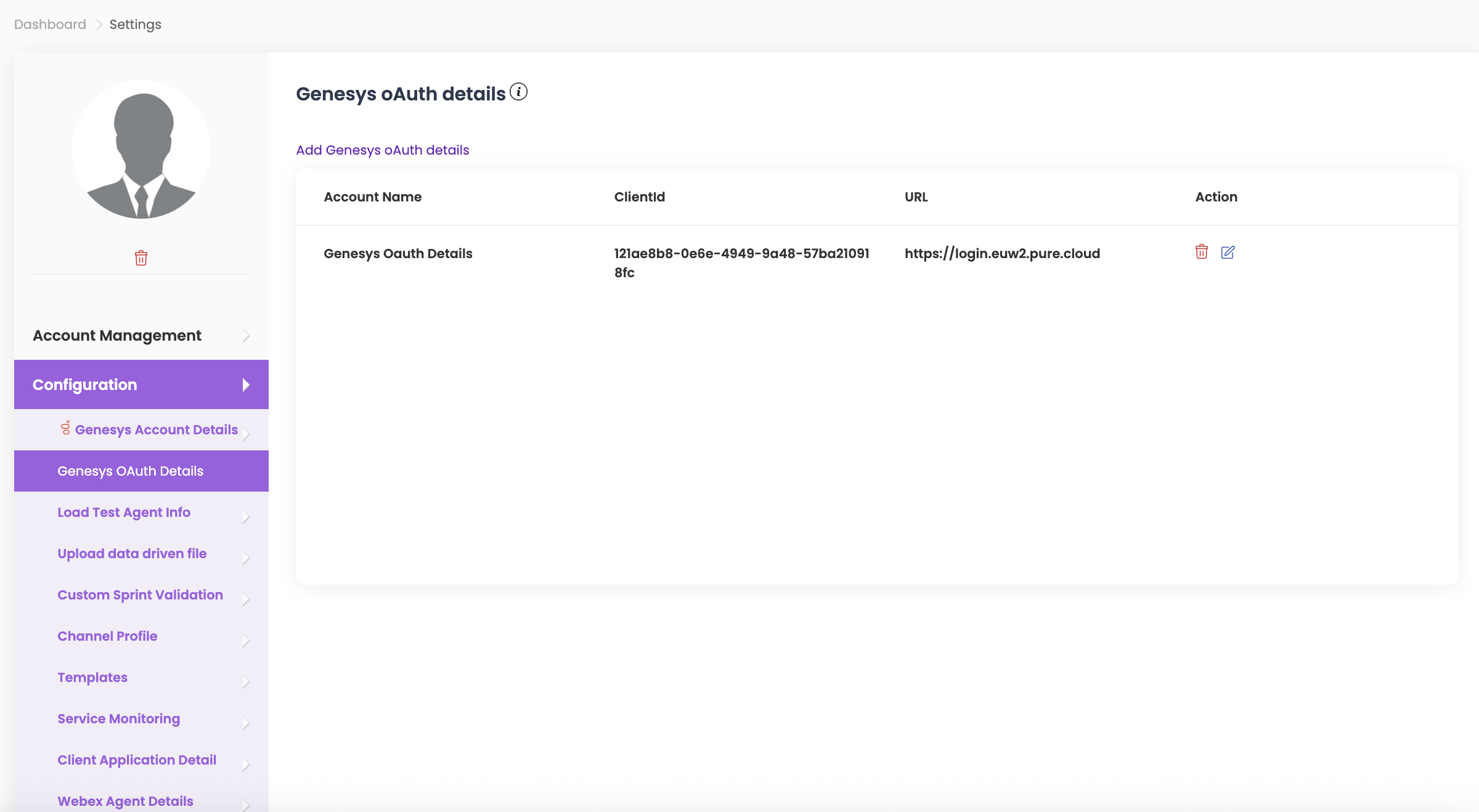
Before you begin testing, you must configure your Genesys Oauth details in the profile settings:
- Navigate to Configuration > Genesys Oauth.
- To add Genesys OAuth logins for test execution, click on Add Genesys OAuth Details.
- Enter the Account Name, Client ID, Client Secret, and select the Login URL from the dropdown.
- Click Save.
- You can find more details by clicking here.
1. Set Up IVR Tree Configuration #
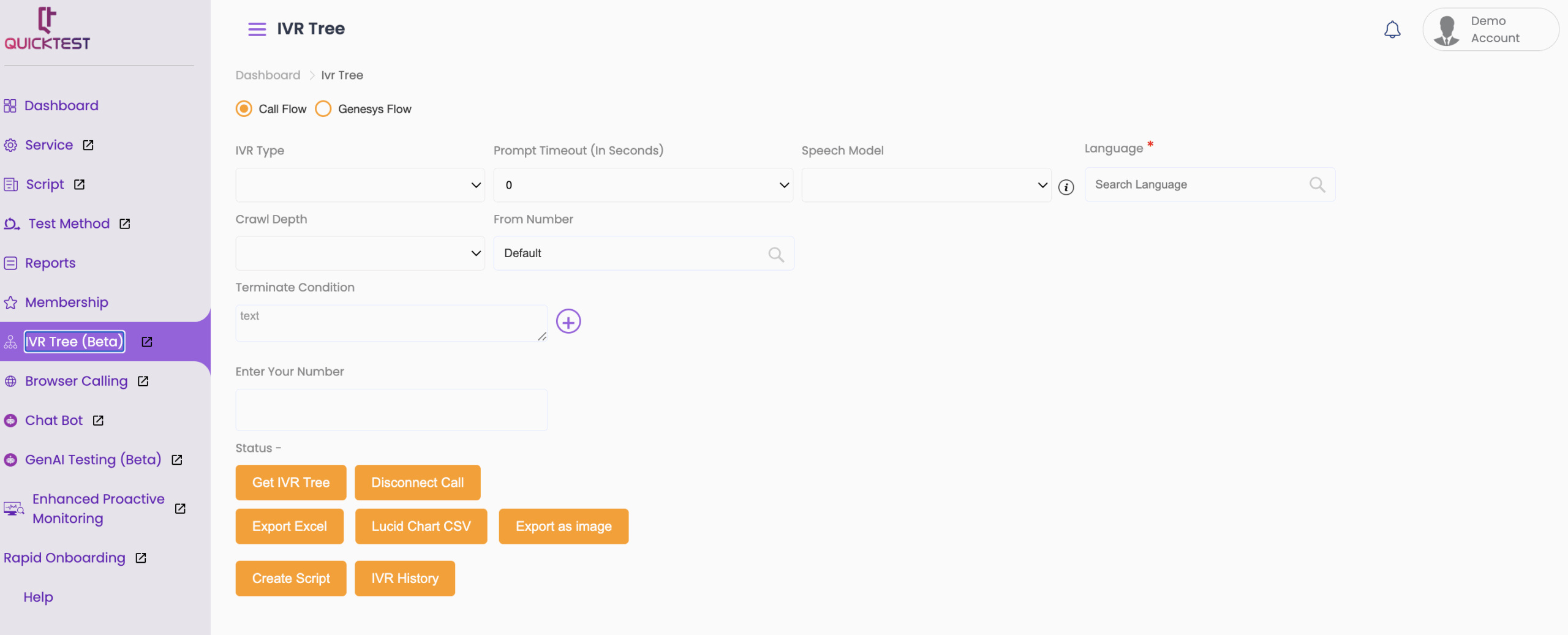
- Click on IVR Tree, then click on Genesys Flow.
- From Flow Type, select whether it is Outbound or Inbound call.
- Select the required Flow Name from the dropdown menu.

2. Generate IVR Tree #
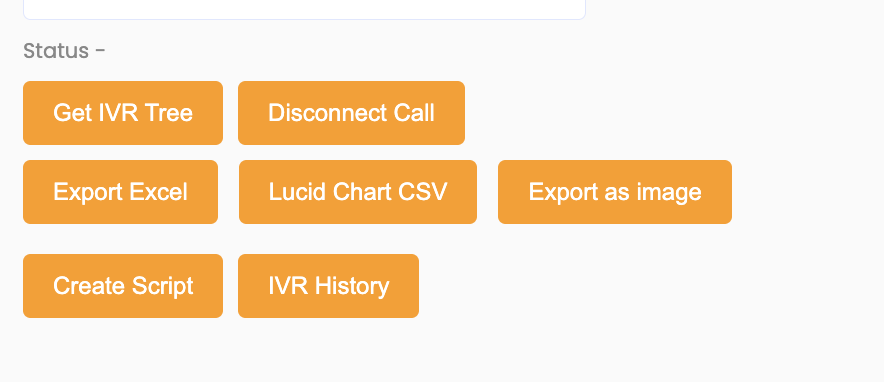
- Click Get IVR Tree to generate a visual map of your IVR showing all flows and nodes.
- Note: It may take a few minutes for the tree to generate as QuickTest gathers information.
3. Select Flows and Nodes #
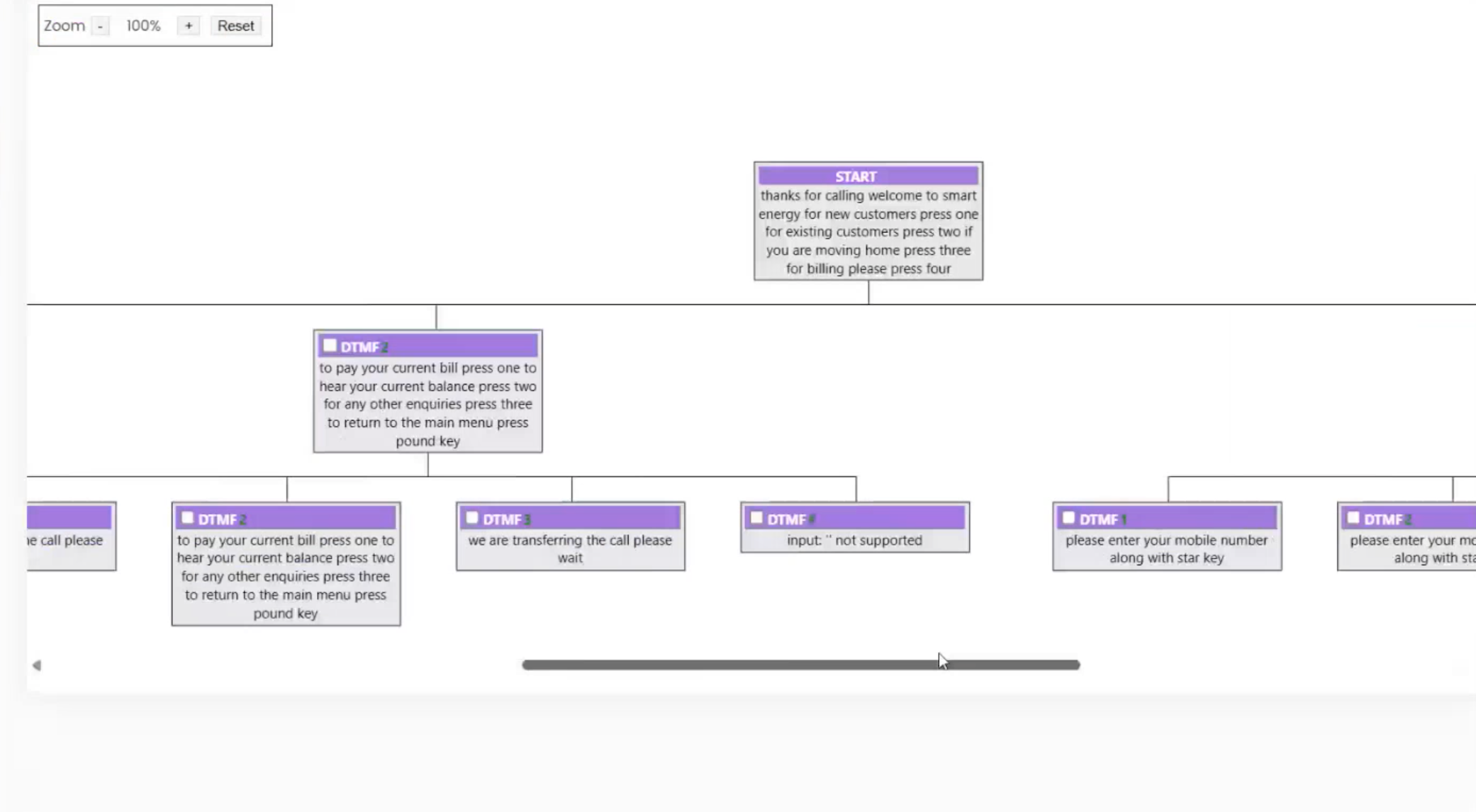
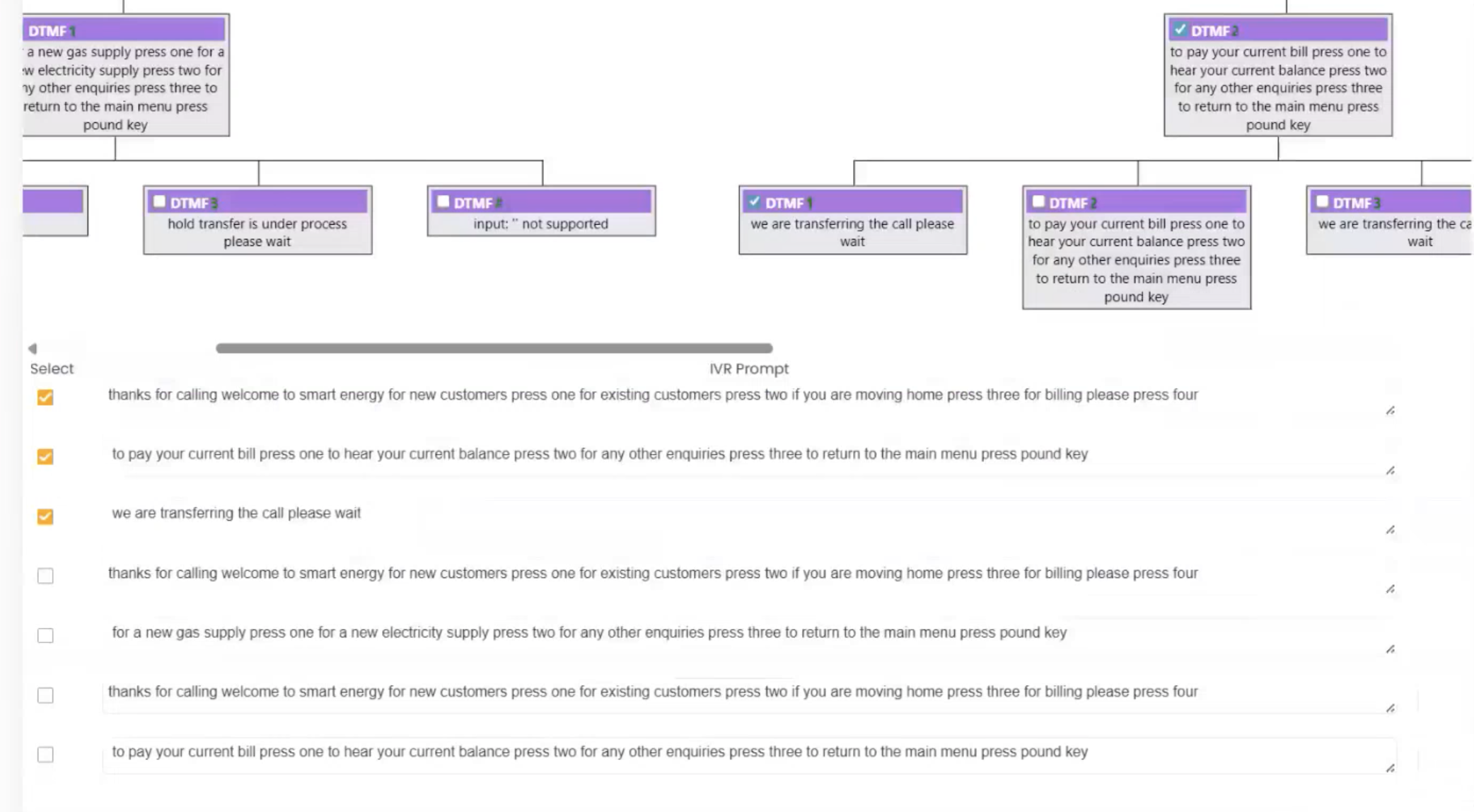
- Once the IVR Tree is ready, choose a specific flow and select desired nodes.
- A tick mark will appear on each selected node.
- Use the Zoom function to zoom in/out for detailed or broader views.
4. Select IVR Prompts #
- Scroll below the IVR Tree to view a list of IVR prompts.
- Select the prompts you want to include in your script.
5. Create Script #
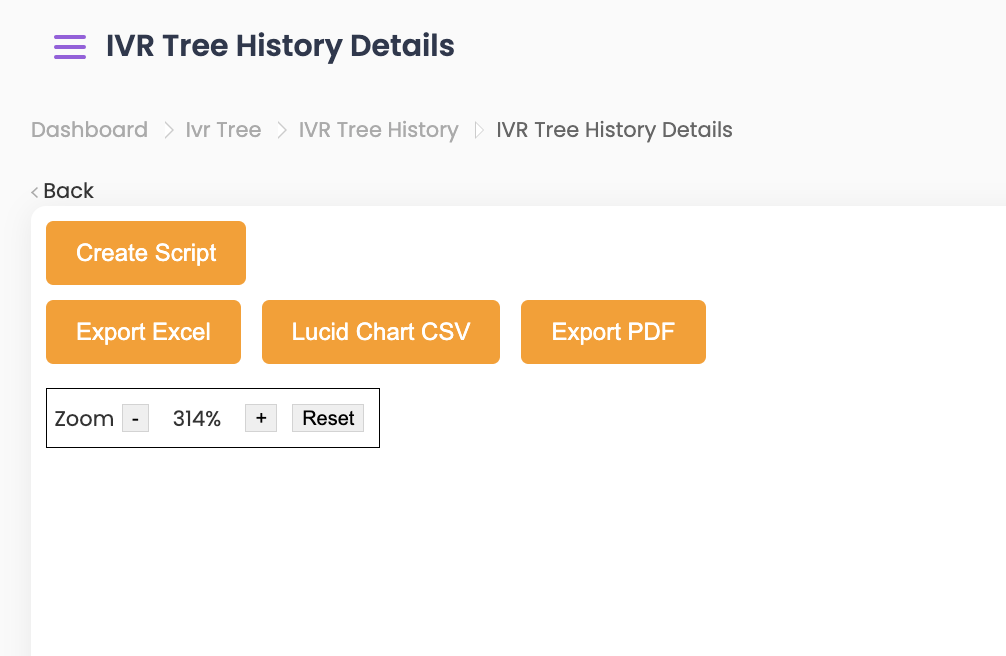
- Scroll up and click on Create Script to automatically generate a script based on chosen flows and nodes.
- Enter Script Name.
- Select a Channel.
- Select NLU Support and Use Step if required.
- Under Add Messages, your selected IVR prompts will appear.
- Click Save to finalize the script and use it for creating test cases.
6. Export Options #
- Export Excel: Export the selected flows and nodes into an Excel sheet.
- Lucid Chart CSV: Export IVR tree data in CSV format compatible with the Lucid application.
- Export PDF: Export the IVR tree in PDF format.


