Enhanced Proactive Monitoring Overview #
Enhanced Proactive Monitoring gives you real-time insight into Genesys Flow and Trunk Entry Points, letting you detect irregularities the moment they happen. You can set thresholds for active calls and let the system do the rest, automatically triggering test sprints and alerting your team to potential problems. It’s a smarter, faster way to maintain flow integrity and ensure seamless customer experiences.
Setting Up Enhanced Proactive Monitoring #
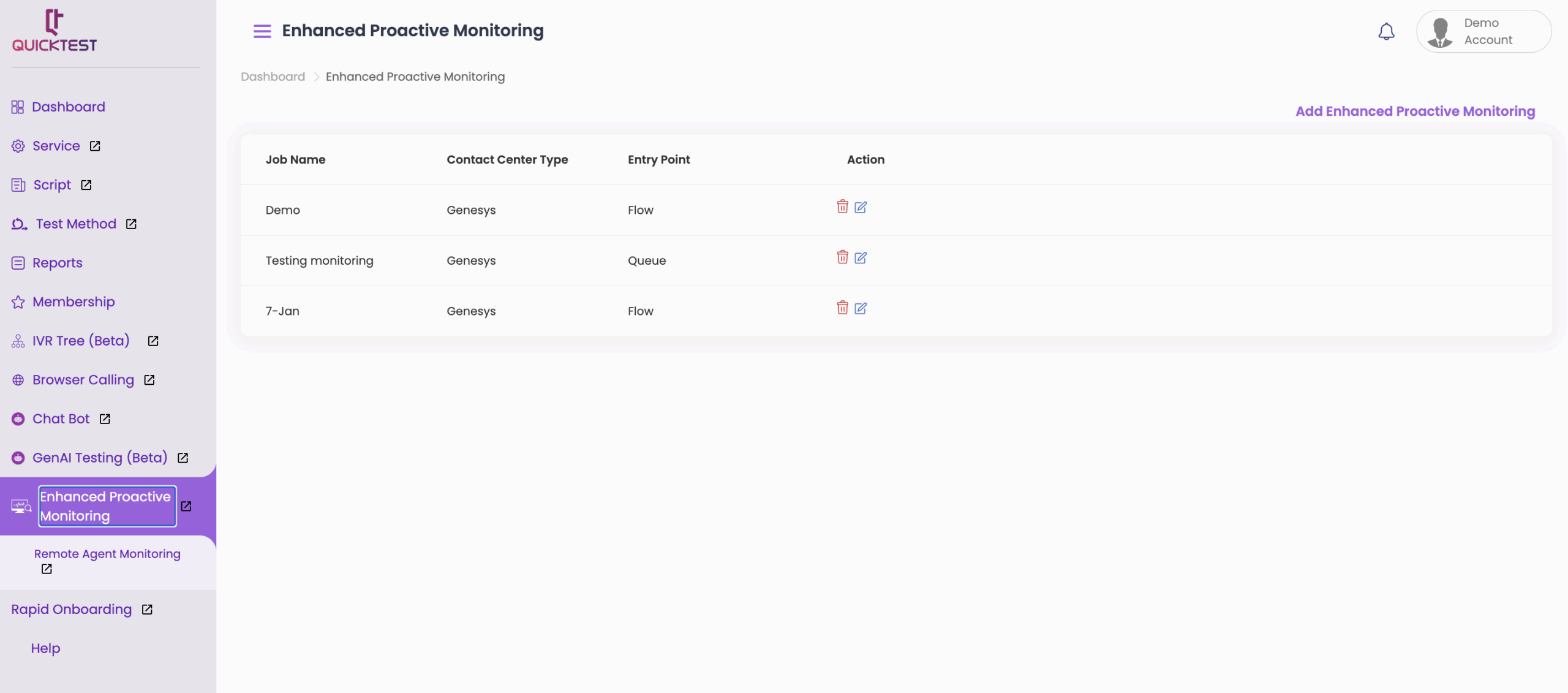
1.Access Enhanced Proactive Monitoring
- From the left menu, select Enhanced Proactive Monitoring.
- Click Add Enhanced Proactive Monitoring.

2. Enter Monitoring Details
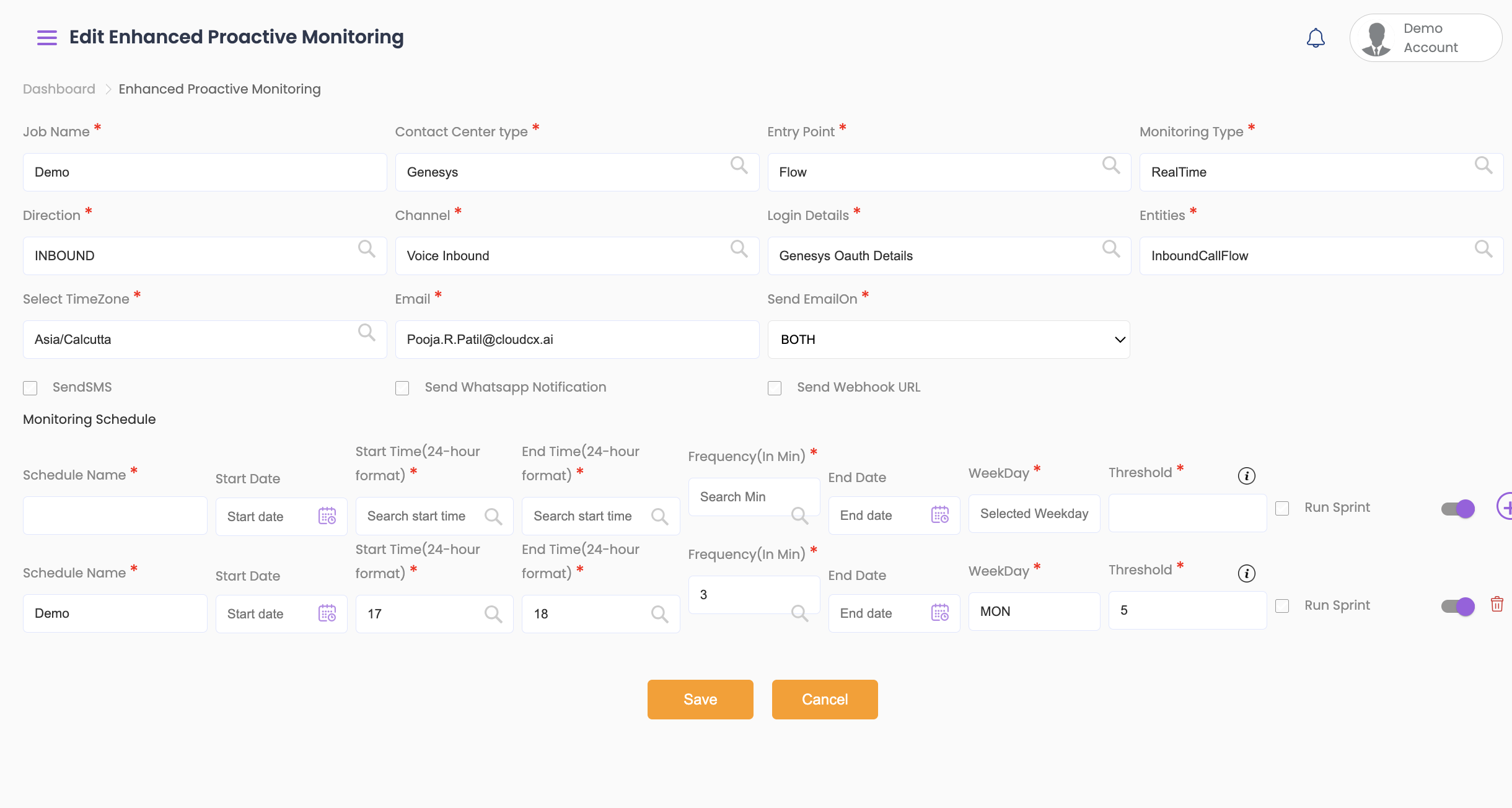
- Fill in the following details:
- Job Name
- Contact Center Type (select from dropdown)
- Entry Point (choose from Flow, Trunk, or Queue)
- Monitoring Type: Select either Real Time or Time Interval
- Direction: Choose between Inbound or Outbound
- Channel: Select from dropdown options
- Login Details: Select login details (You can configure your Genesys OAuth details from the Profile section > Configuration. [Click here to learn more.])
- Entities: Select the relevant entities
3. Configure Schedules
- Enter a Schedule Name
- Specify the Timezone
- Select the Date, Start Time, and End Time (time format is in 24-hour format)
- Set the Frequency (interval for call flow checks)
- Choose applicable Weekdays
- Enter Threshold Details:
- Real Time Monitoring: Minimum number of interactions expected at the entry point
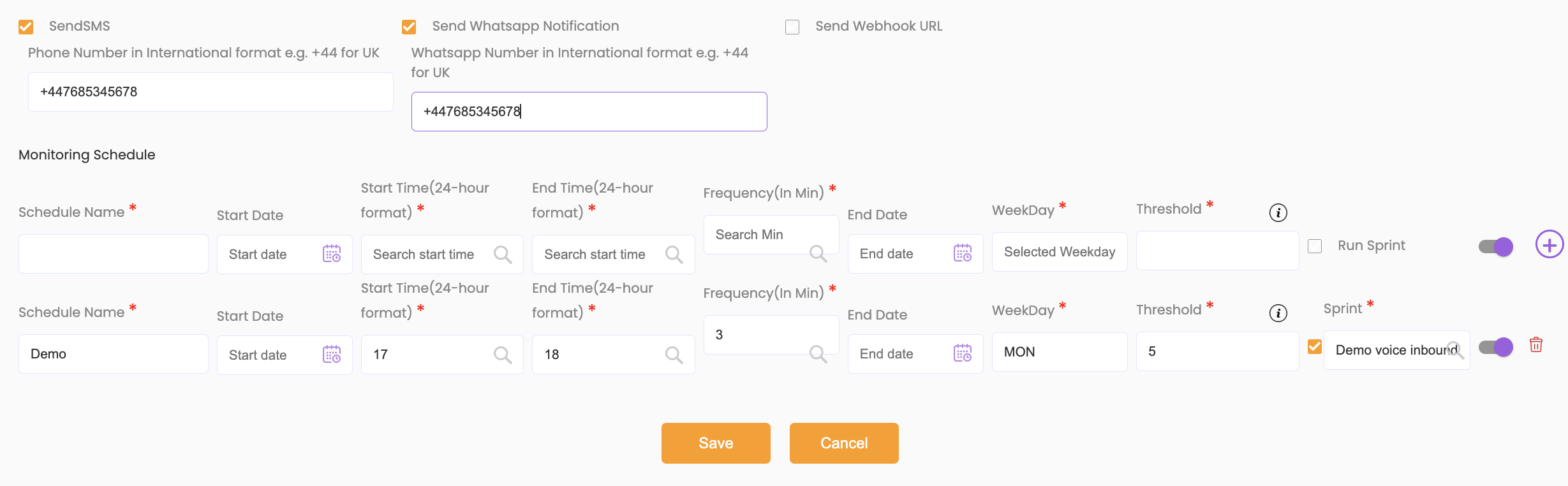
- Associate a Sprint:
- Tick the Run Sprint checkbox
- Select the Sprint from the dropdown
- Enable Notifications by checking the relevant options:
- SMS
- Webhook (enter phone number or webhook URL)
4. Manage Schedules
- Use the toggle icon to enable or disable schedules.
- Click the + icon to add multiple schedules as needed.
- Click Save once all details are complete.
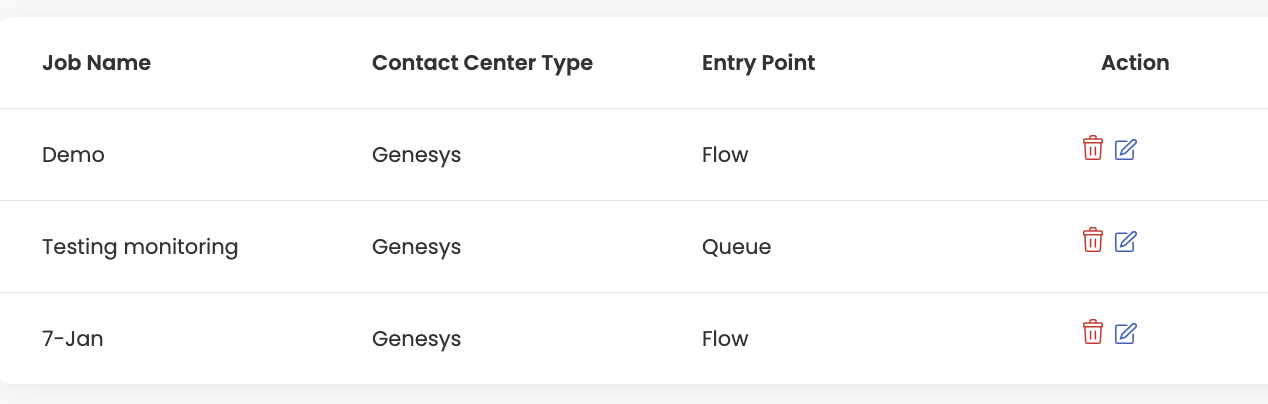
- To edit or delete schedules, click the Edit icon or Bin icon under the Action column.
View Monitoring History #
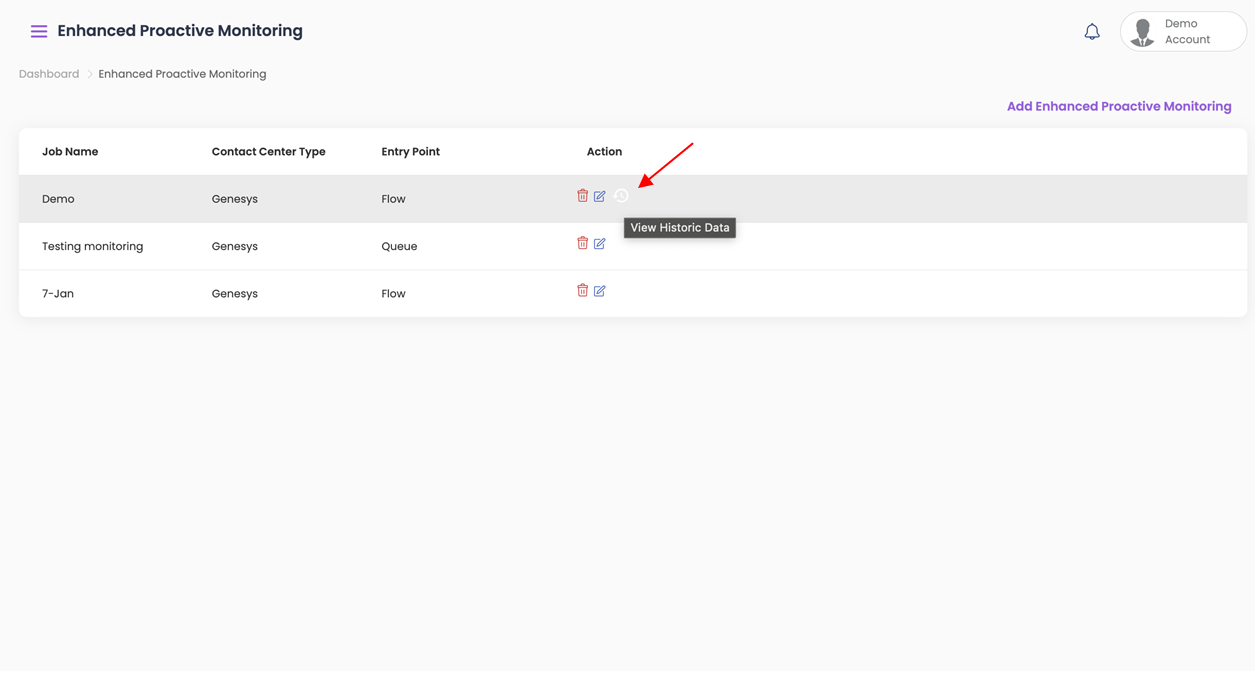
- Select View Historic Data to review progress and outcomes.
- Apply date filters to view specific schedule details.