After running a test, you can review detailed results and insights through GenAI History.
1. Accessing GenAI History
- Click GenAI History.
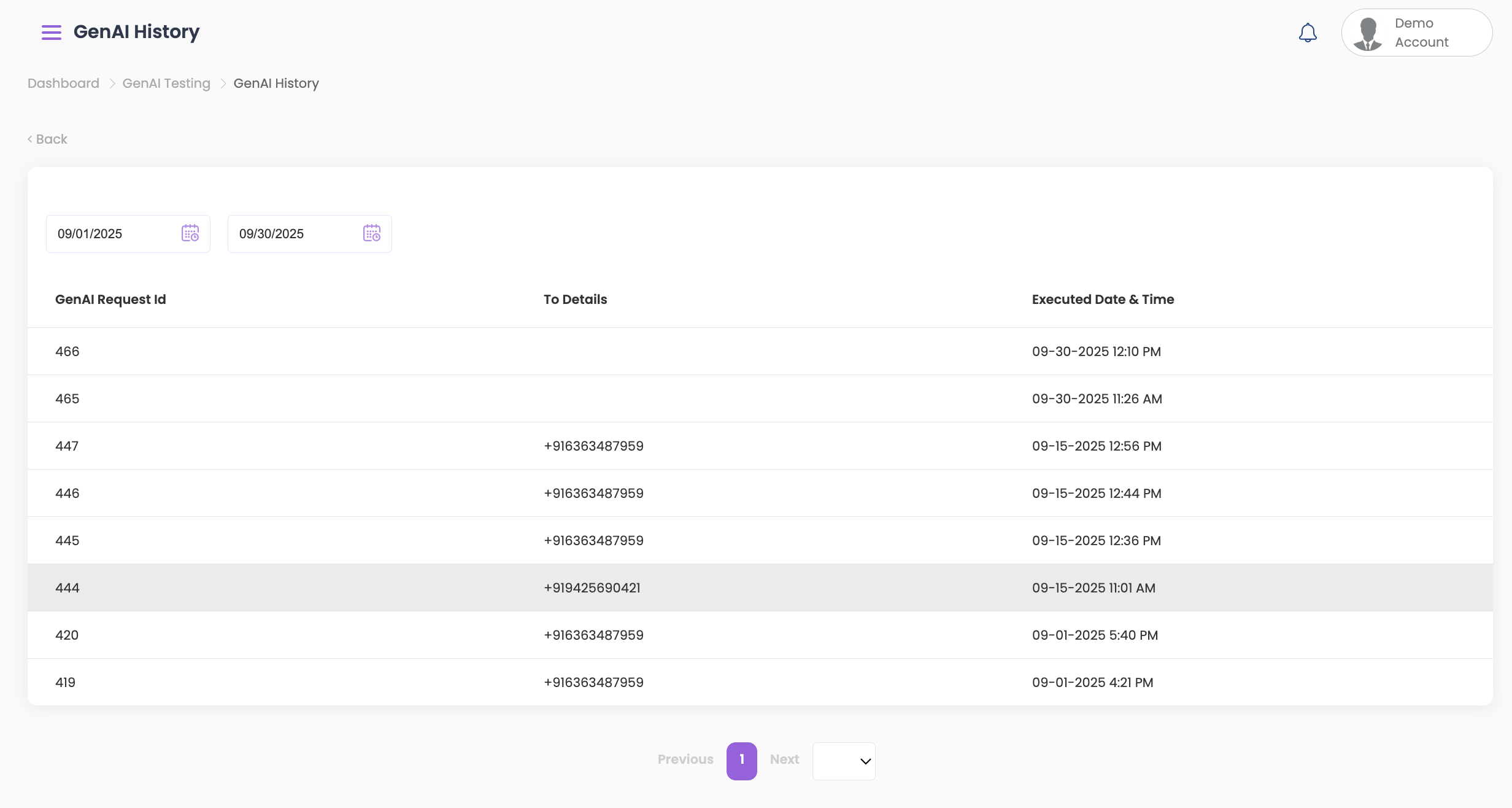
- Select a Date Range to filter the tests you want to review.
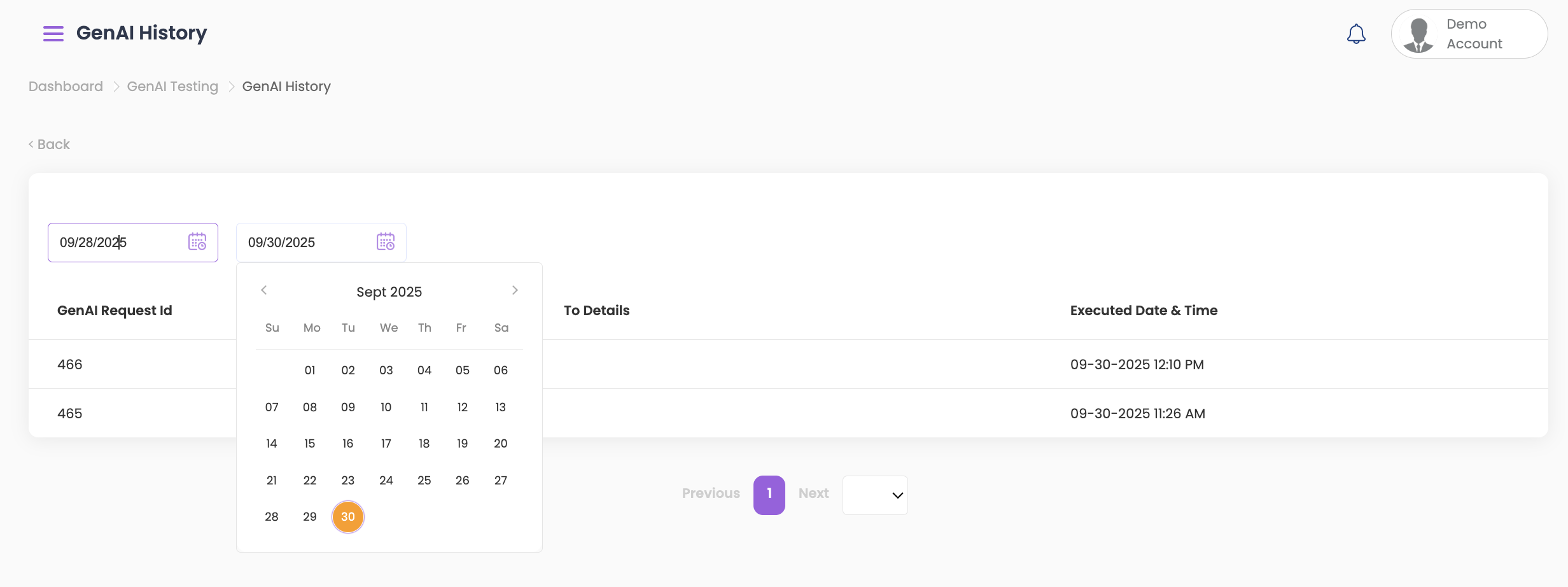
- Click on the desired Test Case to open its details.
2. Viewing Test Details
The test details page displays the following information:
- Scenario Name
- Result
- The result is Success only if all responses are successful.
- If even one response is a failure, the overall result will be Failure.
- Call Status
- Indicates whether the call was completed or not.
- Clarity
- Measures how clearly the conversation was understood.
- Assesses communication quality and whether the message was conveyed without confusion.
- Typically shown on a scale of 1 to 5 (higher = clearer).
- Example: A clarity score of 4.5 means the conversation was mostly clear with very few misunderstandings.
- Politeness
- Evaluates the politeness and tone of responses.
- Considers whether language used was courteous and appropriate.
- Shown on a scale of 1 to 5 (higher = more polite).
- Example: A politeness score of 3.8 means responses were generally polite but could improve.
- Relevance
- Assesses how on-topic and aligned the responses were to the customer’s input.
- Shown on a scale of 1 to 5 (higher = more relevant).
- Example: A relevance score of 4.2 means most responses were highly relevant, with minor deviation.
- Responses
- Tracks the quality of responses in the conversation.
- Success: Responses were correct, satisfactory, and resolved the issue.
- Failure: Responses were incorrect, unsatisfactory, or did not address the issue.
- Reason
- Shows the explanation or identified cause related to the test outcome.
- Sentiment
- Analyzes the emotional tone of the conversation:
- Positive: Friendly, encouraging, or supportive tone.
- Neutral: Impartial, without strong emotion.
- Negative: Indicates dissatisfaction, frustration, or negative tone.
- Example: A generally optimistic and friendly exchange will be marked Positive.
- Analyzes the emotional tone of the conversation:
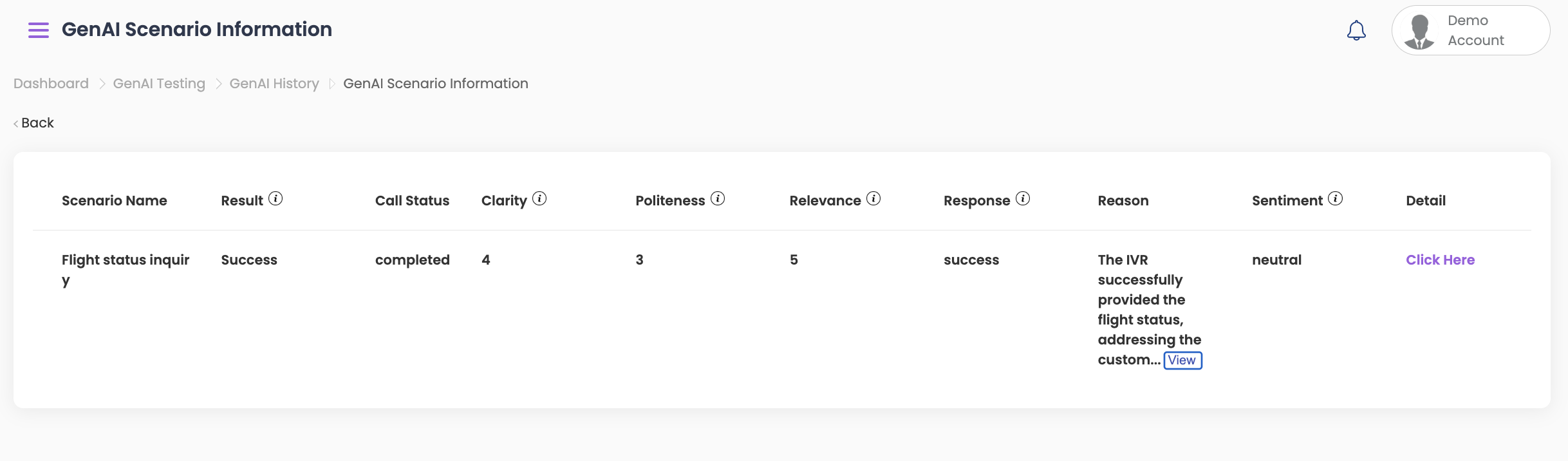
- Detail
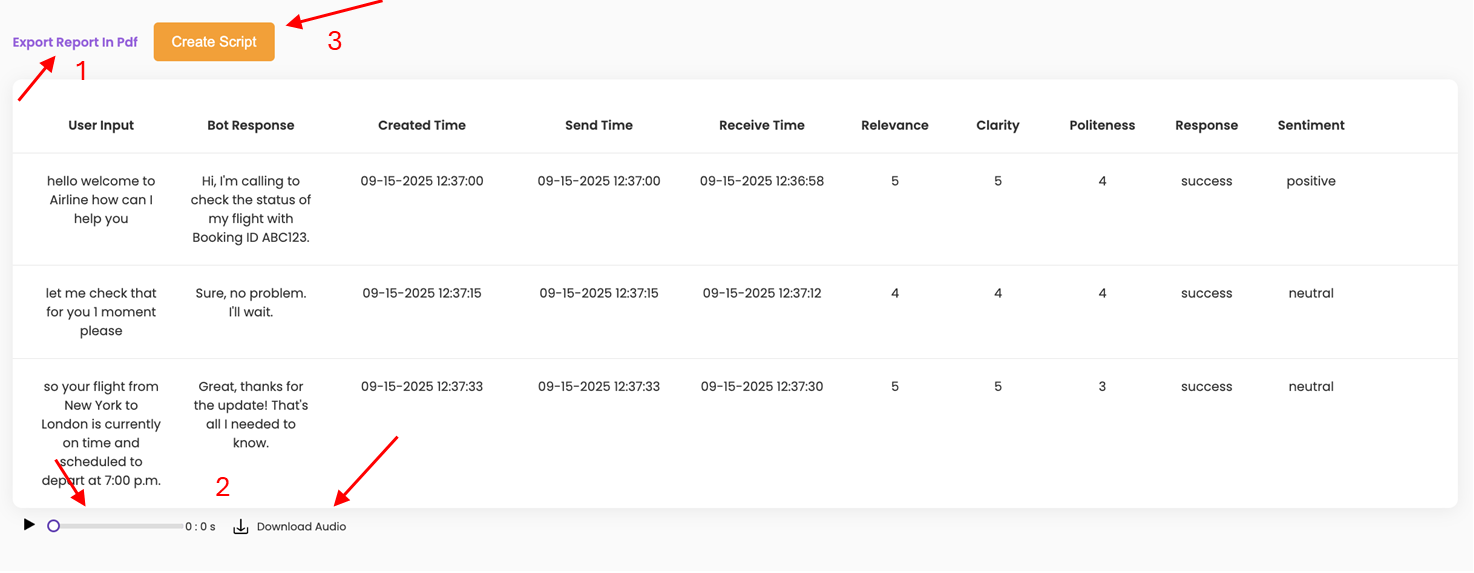
- Clicking Detail opens a new page showing the full conversation between the bot and the user.
- Displays both bot responses and user input messages, along with all evaluation metrics for every prompt.
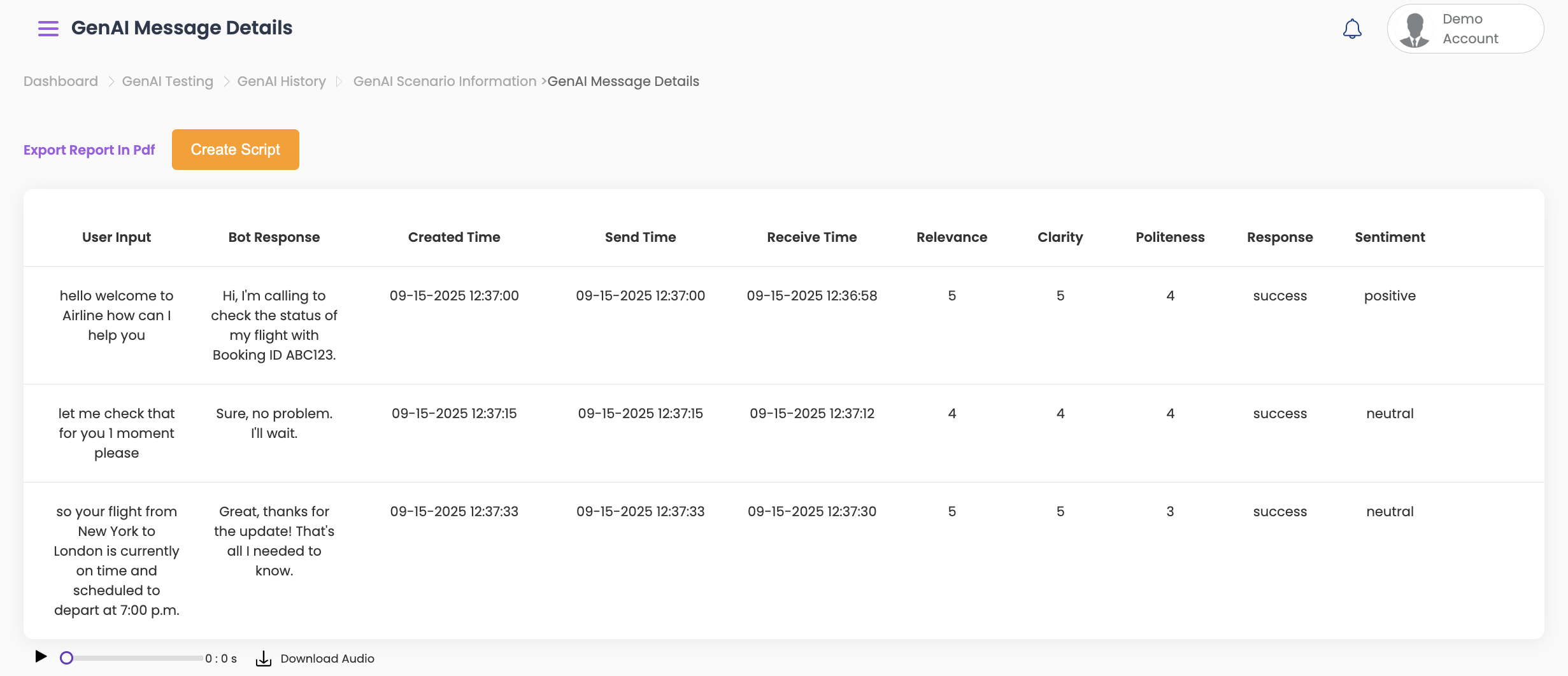
3. Exporting and Additional Options
- Export Report: Download test results in PDF format.
- Audio Playback: Listen to or download the audio of the conversation.
- Create Script: Generate a test script directly from the conversation:
- Click Create Script.
- You will be redirected to the Script Page.
- Edit and update the script as needed.
- Save your new script for future use.