Browser Calling Overview #
Browser Calling provides a web-based phone UI that allows you to test your voice and IVR applications directly from your browser. Whether you’re validating intent recognition, call routing, or DTMF input, you can easily simulate a full customer interaction.
As you interact with your voice flow, QuickTest automatically captures the interaction and converts it into a reusable test script that can be saved, edited, and used for scheduled or automated testing.
Browser Calling is ideal for:
- Rapid development and QA testing.
- Building test scripts efficiently, especially in early-stage flow design or tuning phases.
With Browser Calling, you can accelerate your voice application testing cycle, reduce reliance on manual script creation, and start validating your customer journeys in just a few clicks.
Setting Up Browser Calling #
Follow the steps below to set up browser calling in QuickTest:
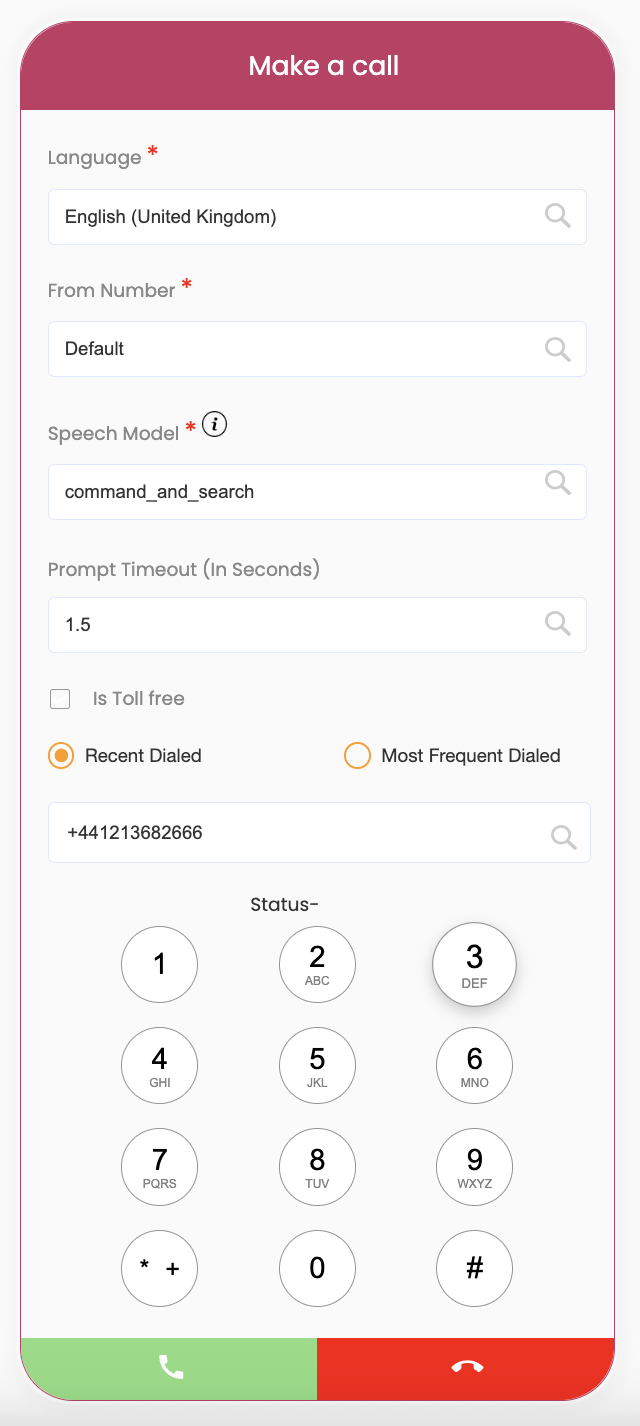
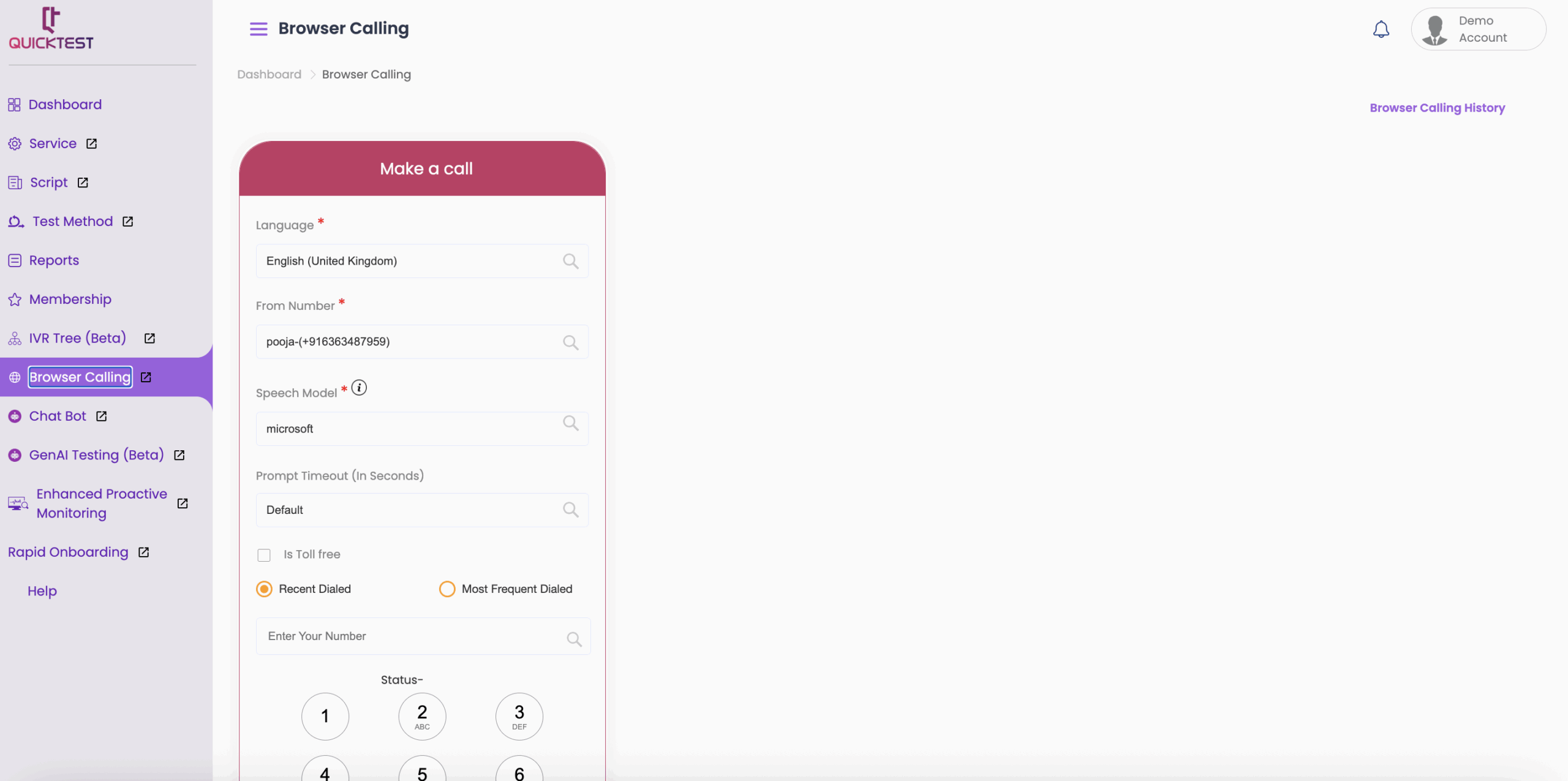
- Click on Browser Calling. To perform browser calling, enter the following details:
- Select the Language from the dropdown list to generate prompts and scripts in a particular language.
- Enter the From Number – the number you would like to originate the call from.
- Select a Speech Model from the dropdown options. This is the recognized language of the IVR.
- Note: You can click on the i icon next to Speech Model to find more details about all available models.
- Set the Prompt Timeout to provide more control during your interactions.
- Enter your Number – the destination you would like the call to connect to.
- You can enter this number manually or use the dial pad.
- Note:
- Input phone numbers in international format (e.g., +44 for UK).
- Users must use ‘#’ to navigate through the IVR. Example: after pressing # on the dial pad, click 1 for Sales.
- Once all details have been entered:
- Click the green phone icon to call.
- Click the red phone icon to hang up
- The status will display as Connected once your call goes through, or Failed if the call has not been connected.