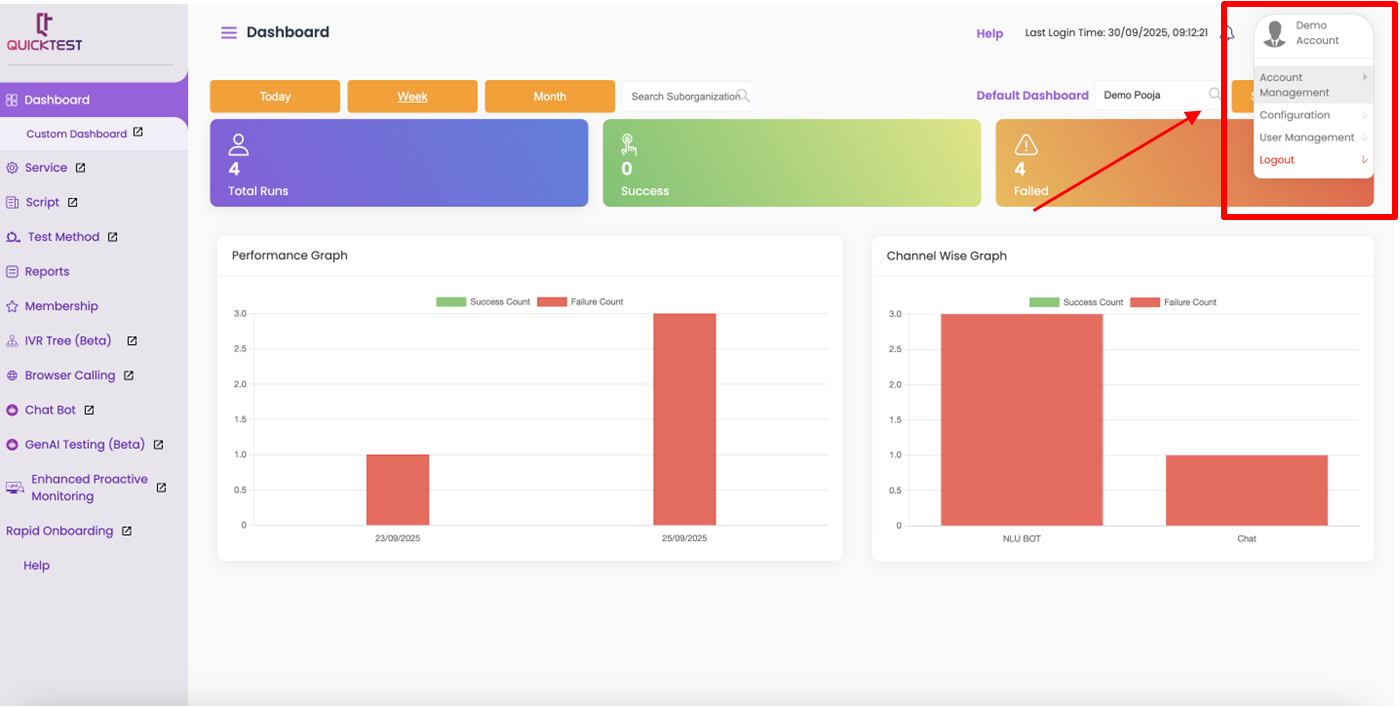
You can find your Account Details in the top right corner under Profile settings.
My Profile #
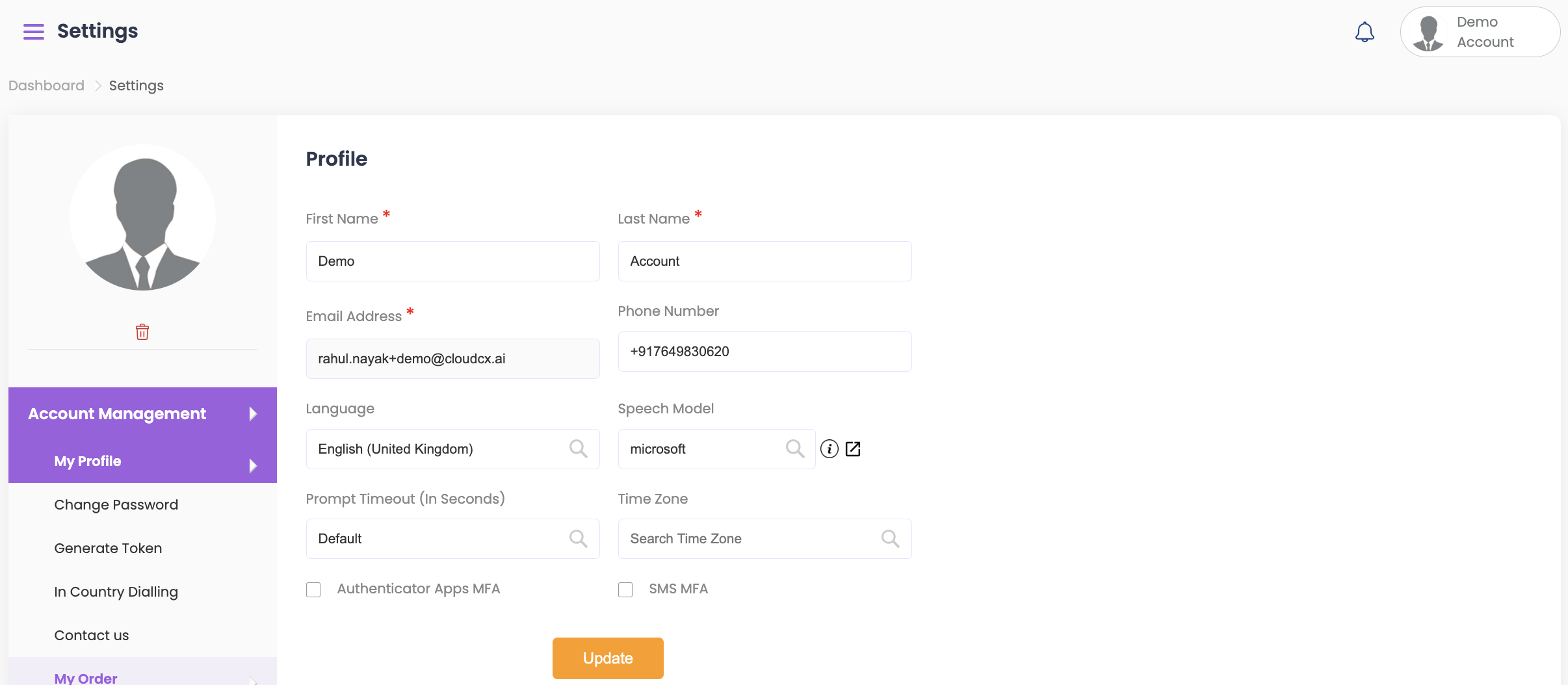
- In the My Profile section, you can update your Name, Phone Number, Time Zone, and Profile Picture.
- You can also set default options for Language, Speech Model, and Prompt Timeout from the dropdown option.
- Click on SMS MFA to enable 2-Factor Authentication.
- Click on Authenticator Apps MFA to enable authentication with QR code and verification code.
- After making changes, click Update to save your details.
Change Password #
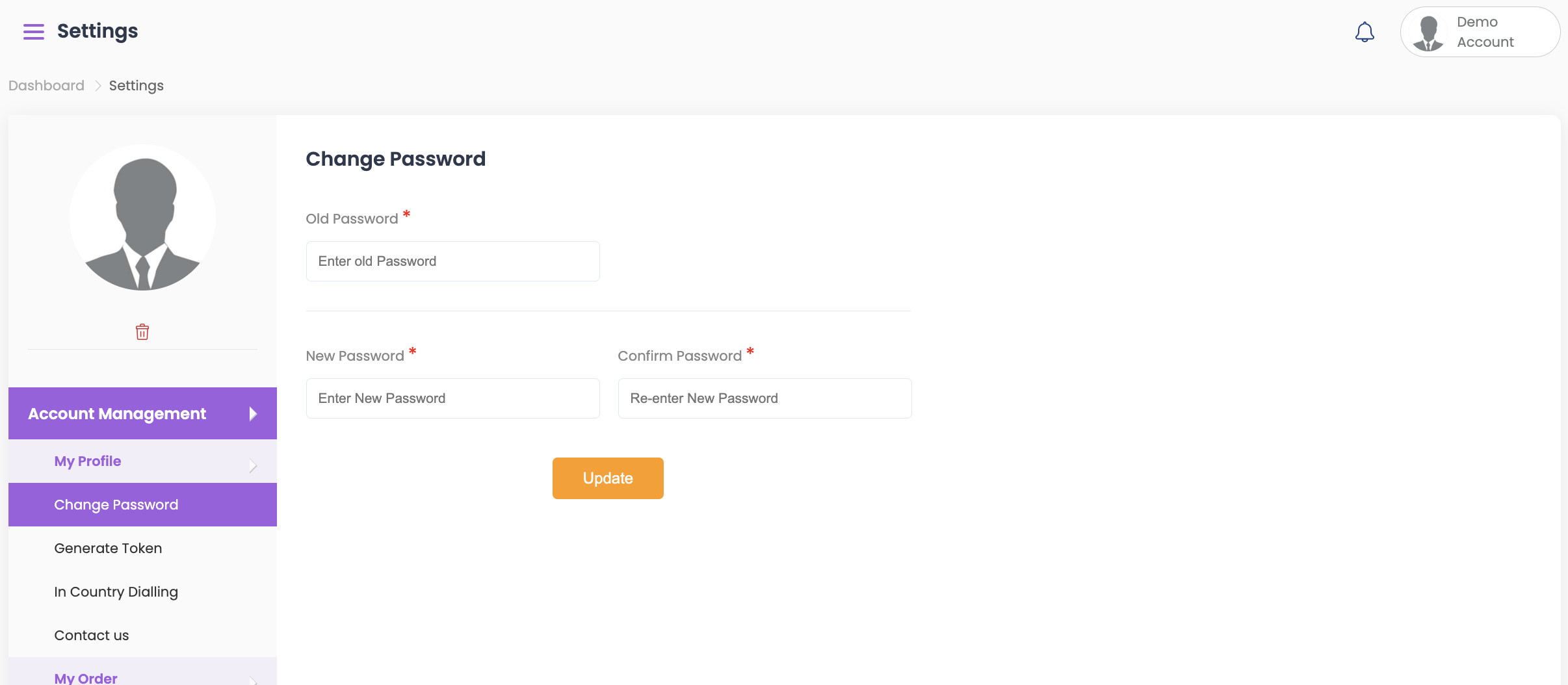
- The Change Password option allows you to change your login password.
- Enter your Old Password and New Password, then click Update once the details are entered.
Generate Token #
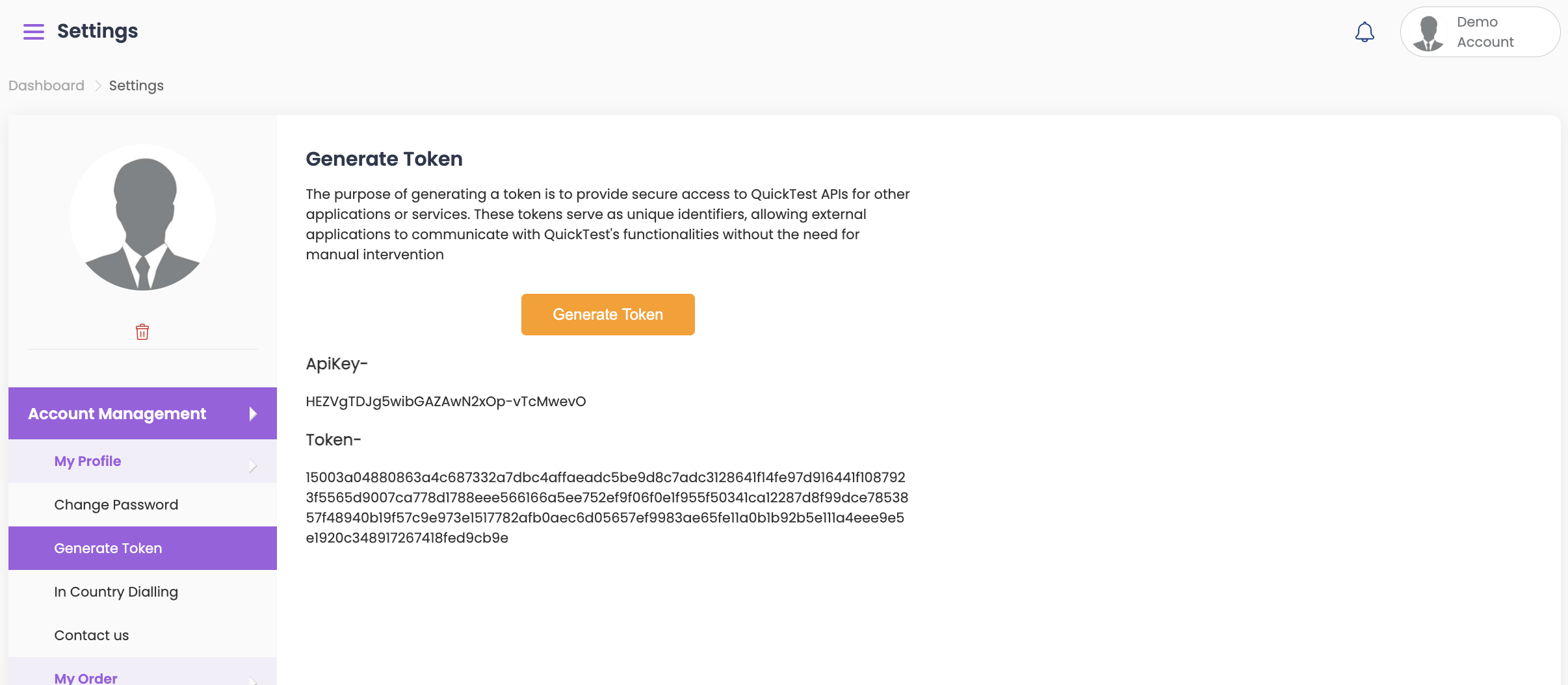
- Generating a token provides secure access to QuickTest APIs for other applications or services. Tokens act as unique identifiers, allowing external applications to use QuickTest functionalities without manual intervention.
- Click on Generate Token to produce your unique API Key and Token.
- Note: Record the API Key in a secure location, as QuickTest cannot recover it.
- A new API Key can be generated at any time if required.
InCountry Dialling #
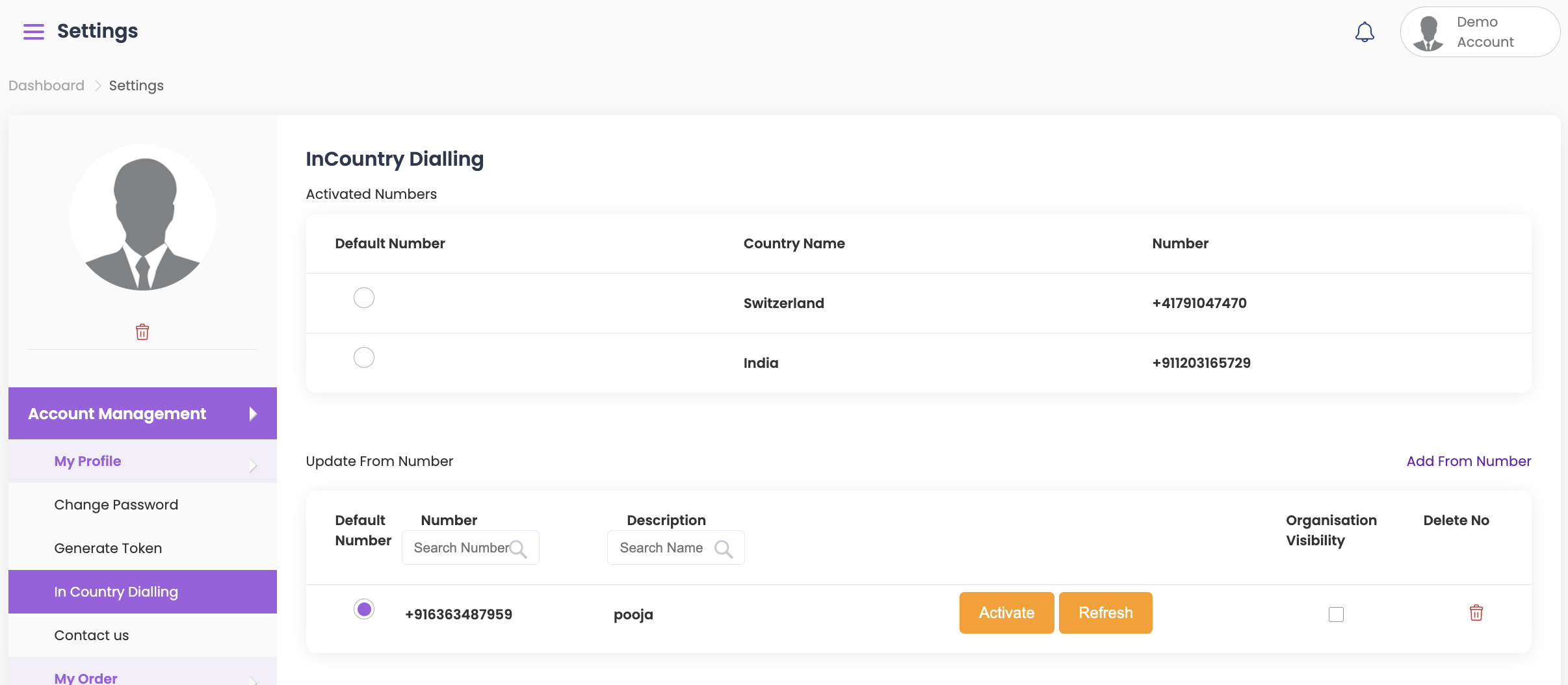
- The InCountry Dialling feature allows you to buy a number from your desired country to test IVRs that don’t accept international calls.
- Click Add From Number, enter the number in international format (e.g., +44 for UK), add a description, and click Submit.
- Click Activate to enable the number.
- You can also select the Organisation Visibility checkbox if you want the number visible to all members in the organisation.
- Your list of numbers will appear, and you can set a Default Number as needed.
- When creating Sprints, select the From Number from the dropdown. The test will then originate from that number.
Contact Us #
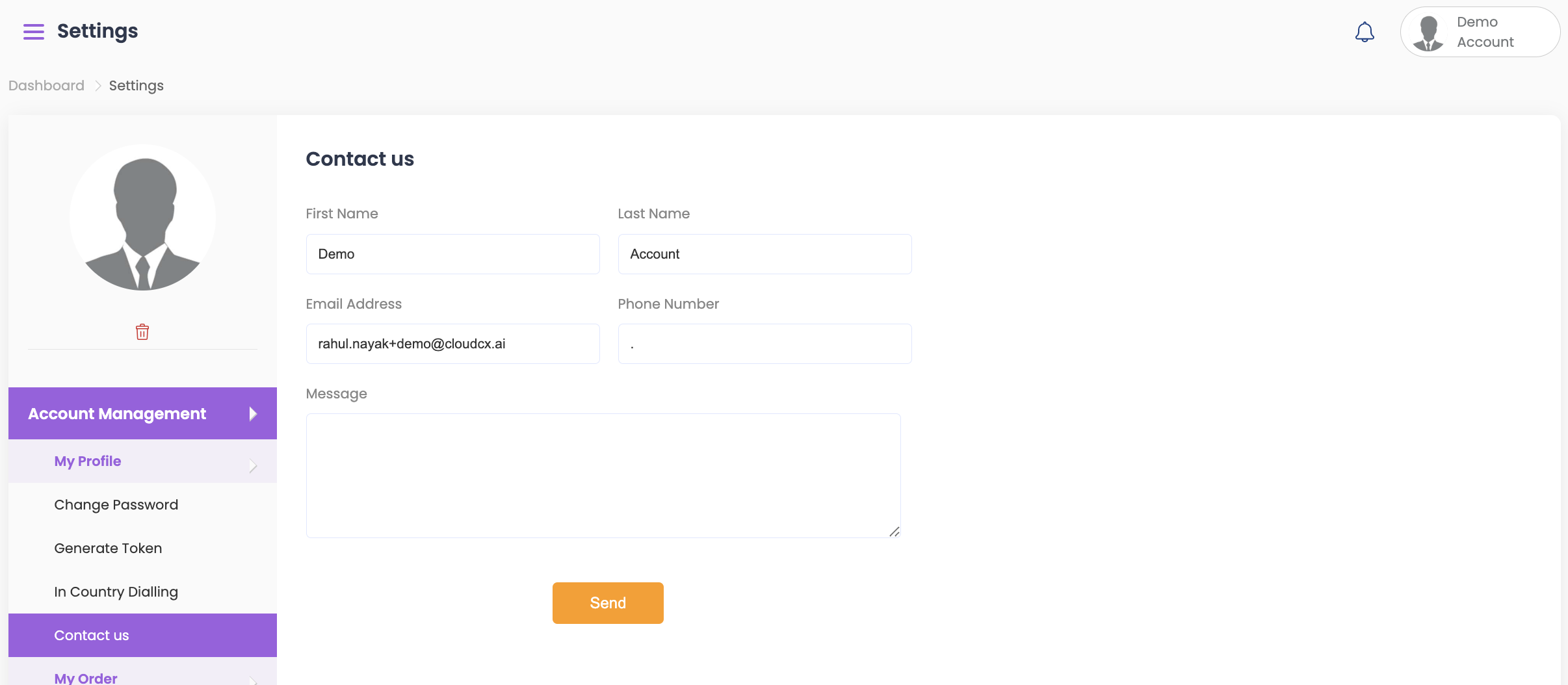
- Use the Contact Us section to send an inquiry or message directly to QuickTest.
- Enter your Name, Email Address, Phone Number, and Message.
- Once done, click Send.
My Order #
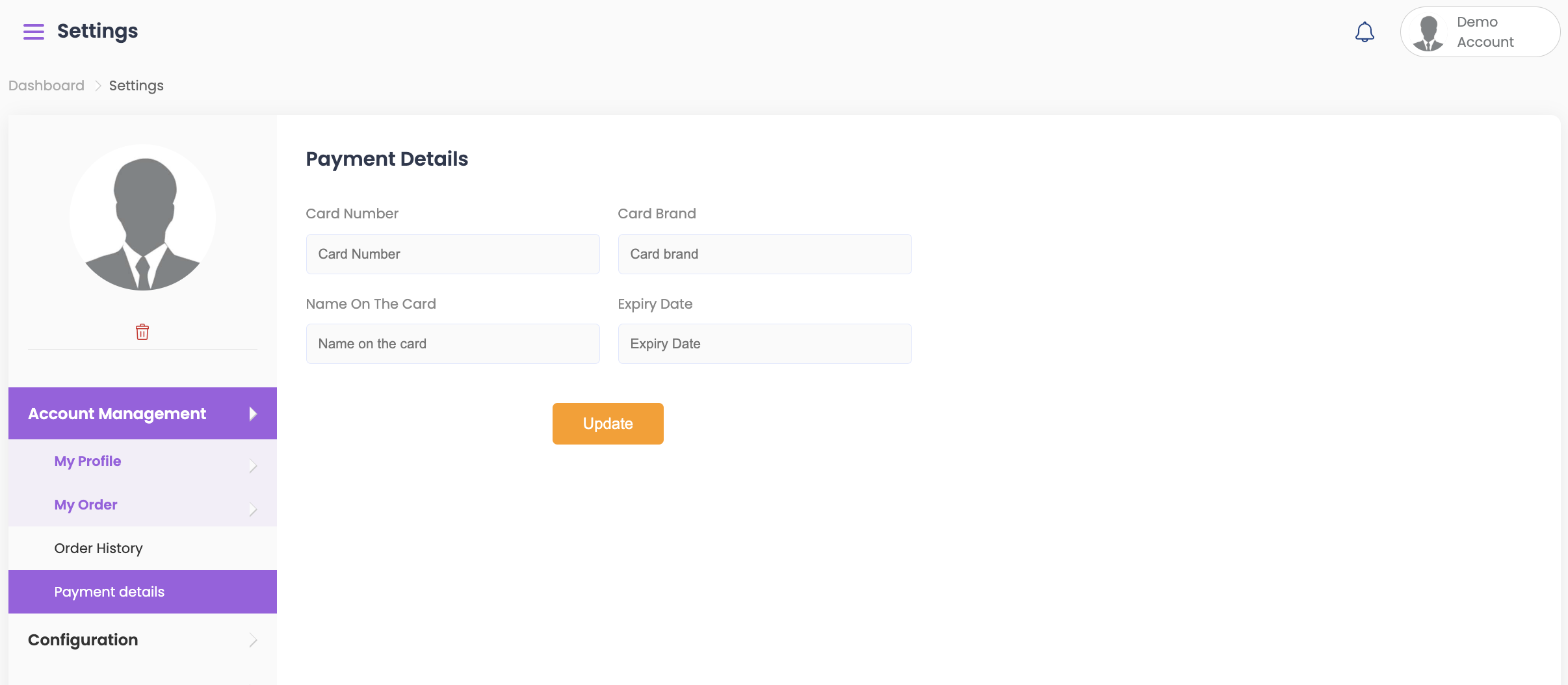
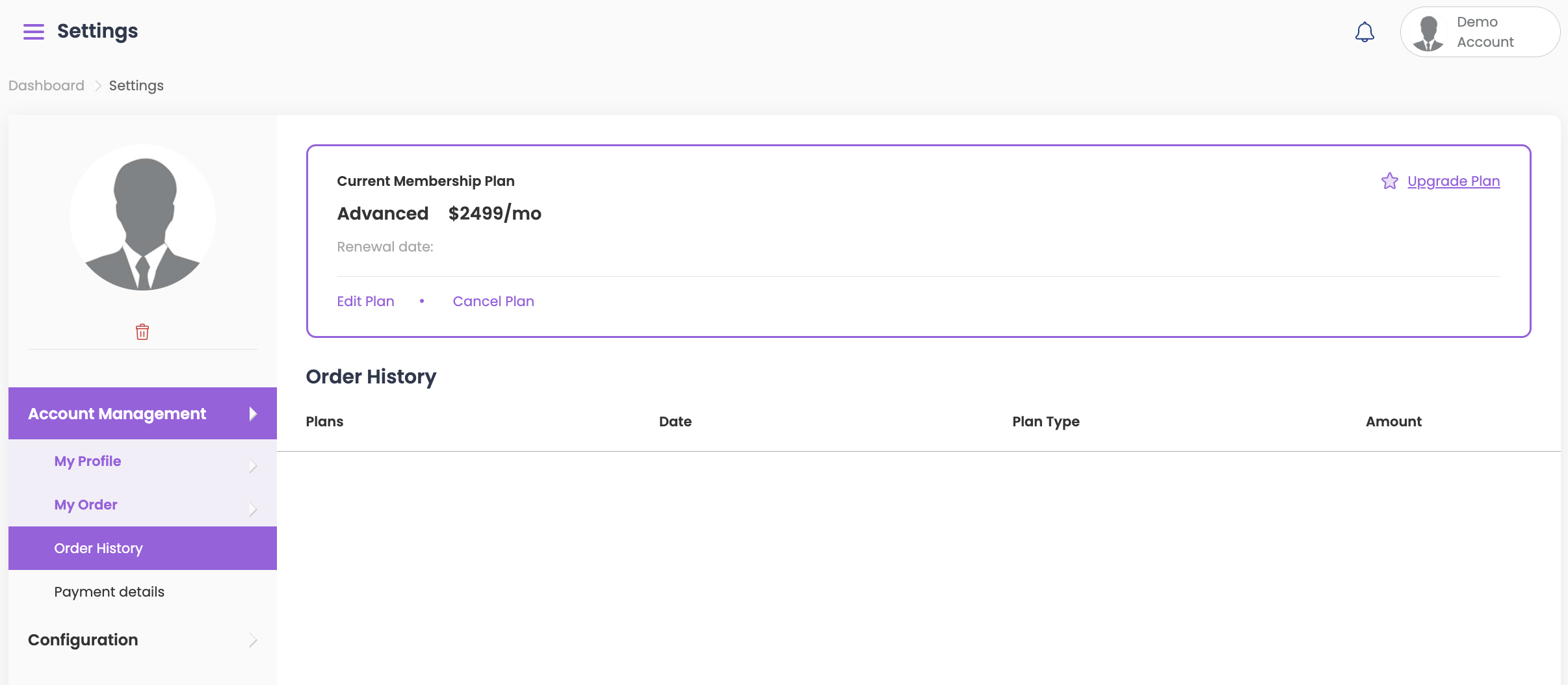
You can find details about your payment methods and your order history.
Order History #
- Order History shows which plan is in use month by month, you can upgrade, edit and cancel your plan here.
Payment Details #
- Payment details show credit/debit card details which are in use for paid plans.