Viewing Browser Calling History #
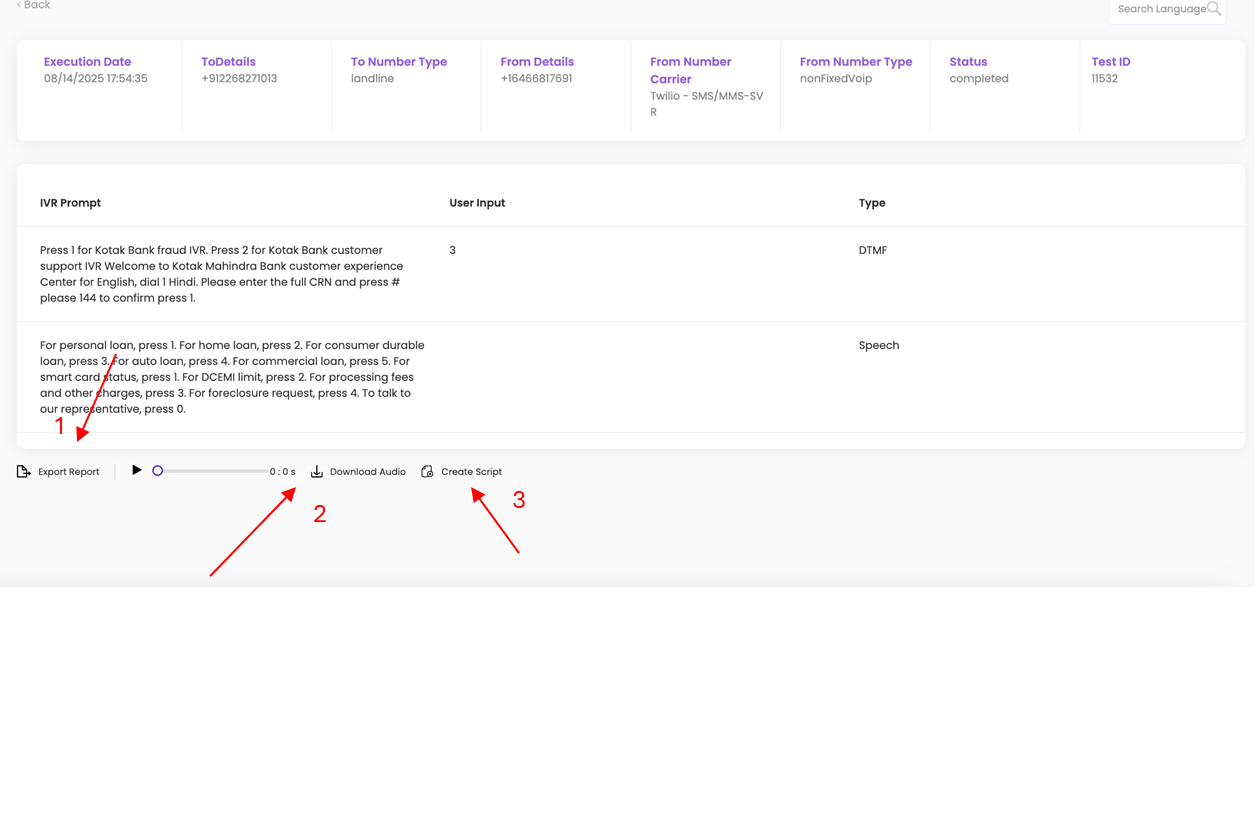
- Click on ‘Browser Calling History’ to view the history of any interactions you have performed.

- Select the start date and end date to view the history.
- The following details will be displayed:
- Browser ID
- To details
- To number type
- From details
- From number carrier
- From number type
- Executed date and time
- You can click on an individual test to view its test history.
Viewing Test Cases #
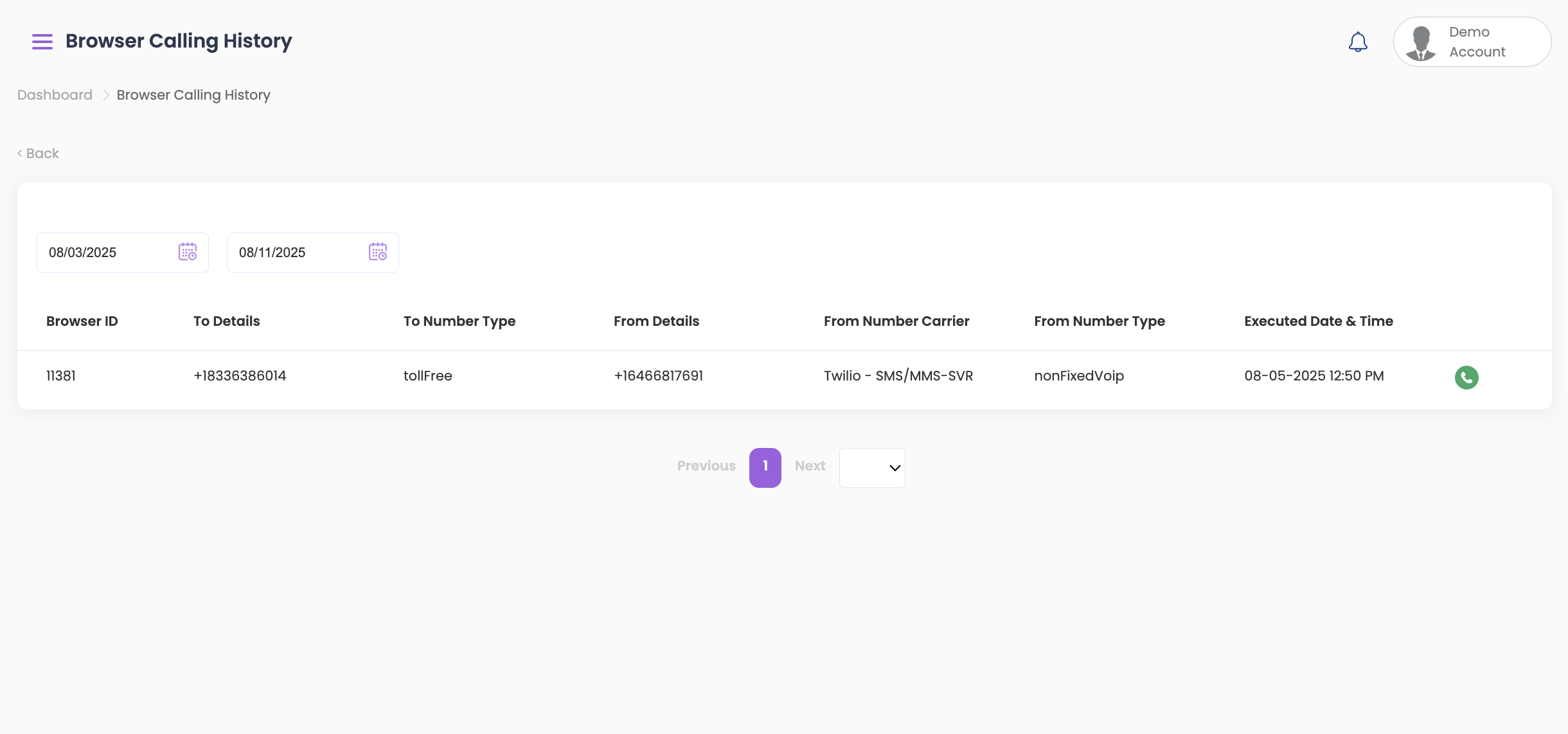
- Once you click on an individual test, you will be able to see the interaction and the following details:
- Execution date
- To details
- From details
- Status (whether the call failed or connected)
- Test ID
- You will then see the IVR prompt interaction along with the user input and the Type (whether it was DTMF or Speech).
Additional Options #
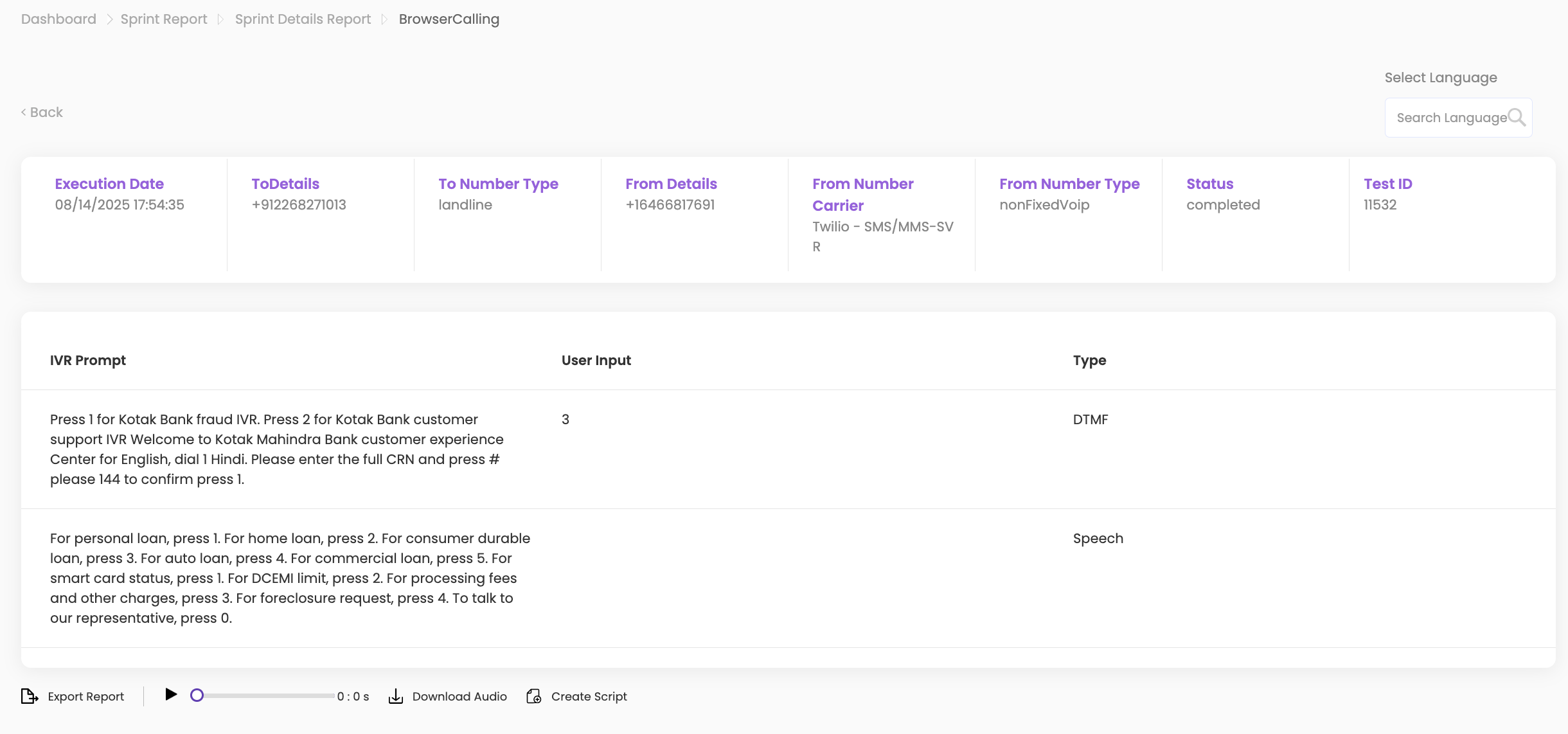
- You can export the report for offline use.
- You can listen to the audio or download the audio.
- If the call was completed, you can create a script easily from the browser calling interaction by clicking on ‘Create Script’.
- Once you click on create script:
- Give your script a name.
- Select the channel.
- Select NLU & DTMF as required.
- Edit your messages if required.
- Once you click on create script: