
Rapid onboarding allows you to swiftly create scripts, services, and schedule sprints for the NLU channel using an Excel upload with default configurations. Additionally, you can easily update scripts with the IVR’s welcome message.
Note: Rapid Onboarding is applicable only for NLU channel
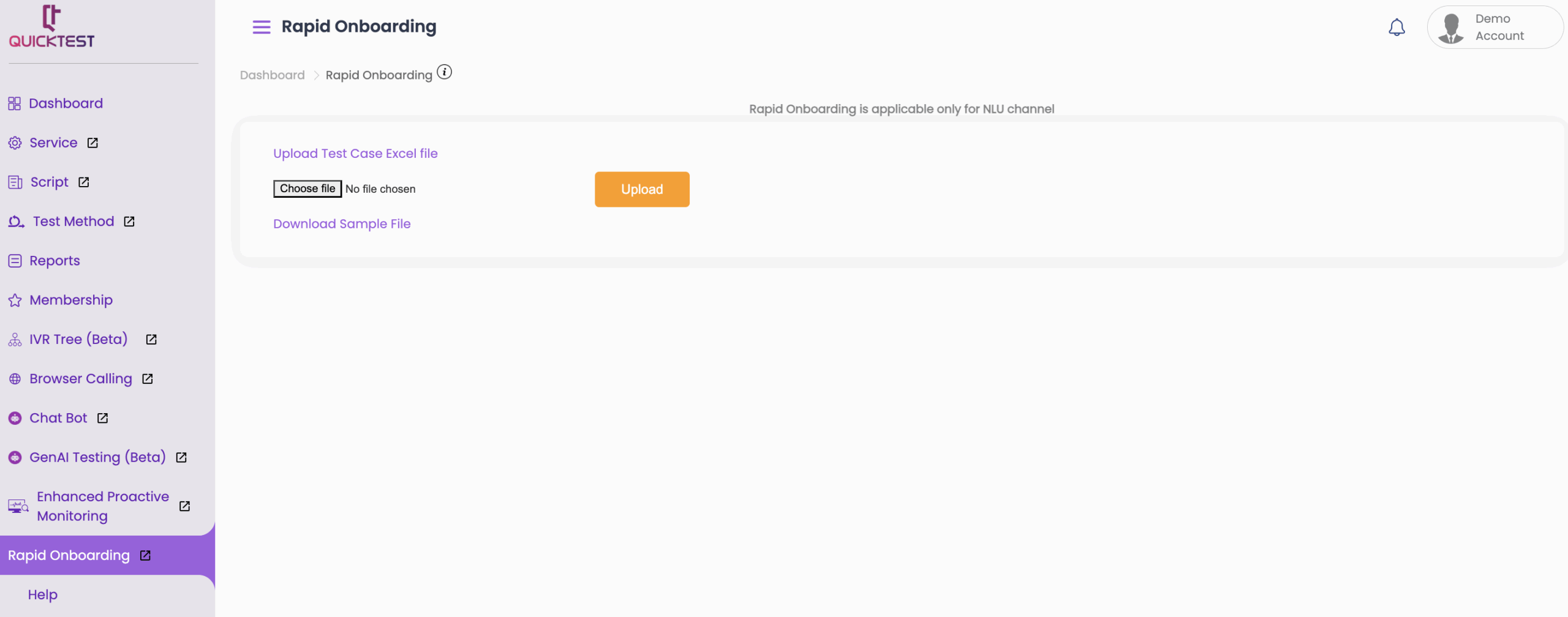
Setting Up Rapid Onboarding #
Follow the steps below to set up Rapid Onboarding in QuickTest:
1. Download the Sample File #
- From the left menu, select Rapid Onboarding.
- Click Download Sample – this will open an Excel file.
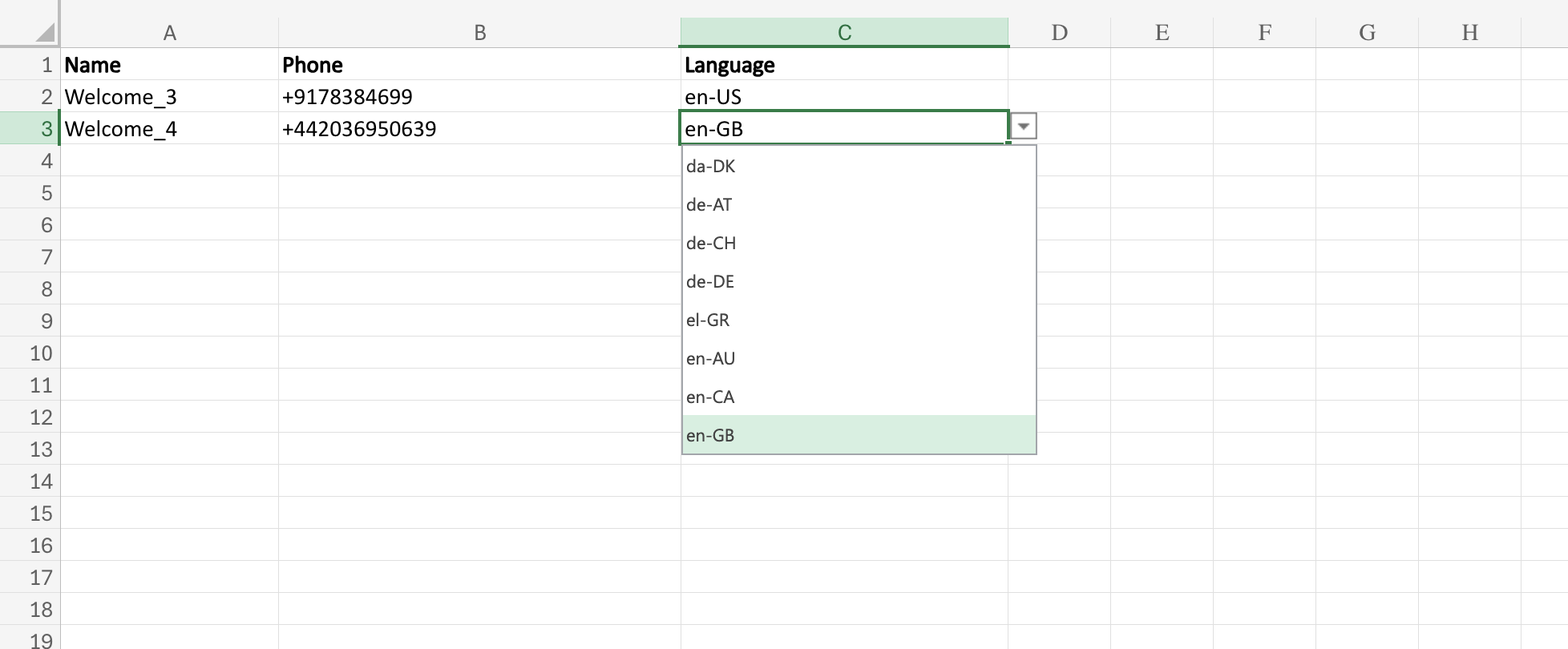
- The file provides a template where you can:
- Enter the Test Name (this name will apply to your Service, Script, and Sprint).
- Enter your Service Number.
- Select the Language from the dropdown options.
- You can add multiple test details in the same file.
2. Upload the File #
- Save the file after entering the details.
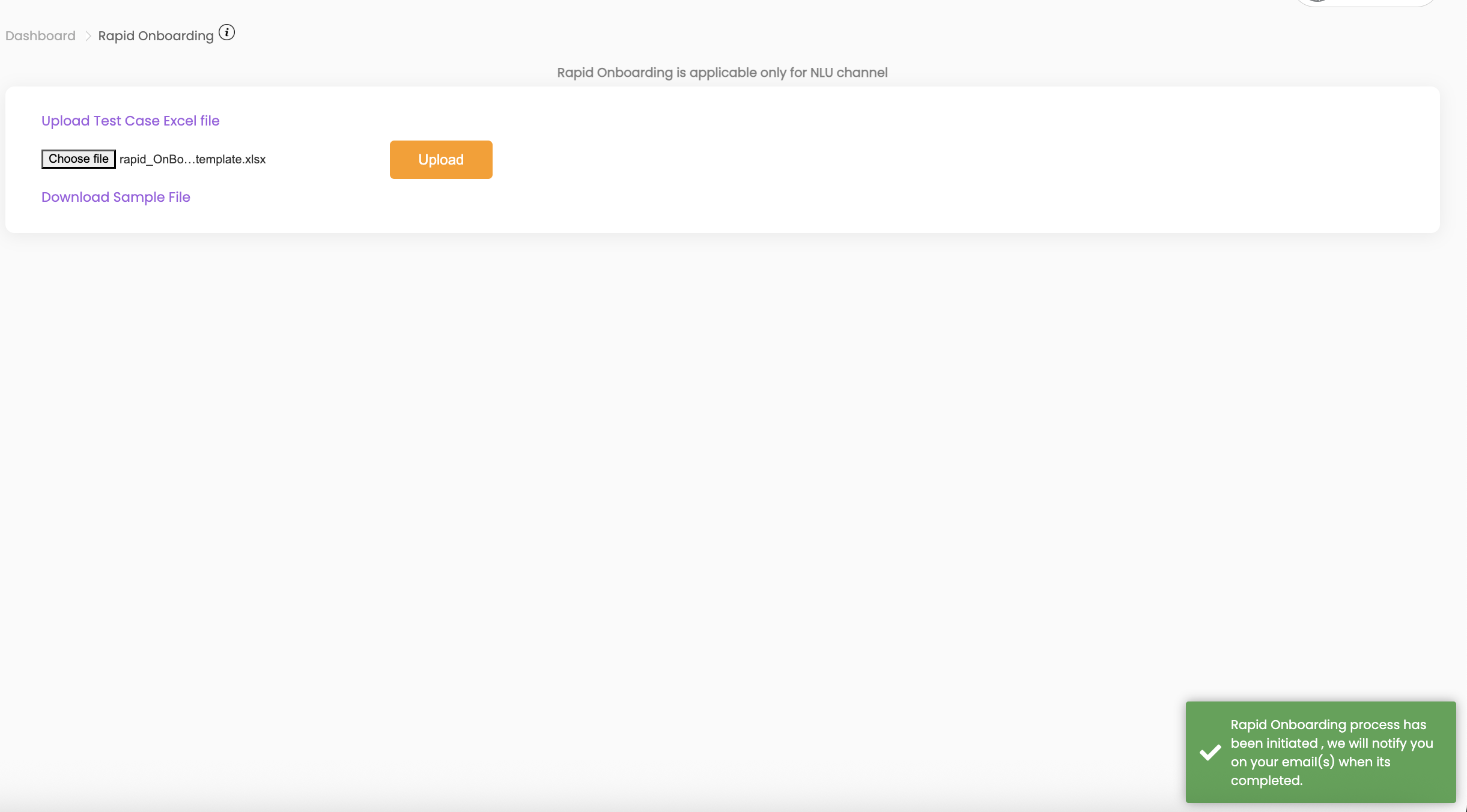
- Click Upload to upload the file back.
- Once uploaded, you will receive a notification in QuickTest that the process has been initiated.
- After uploading, please allow a few minutes for processing.
- You will receive an email notification from QuickTest once the onboarding process is complete.
3. Automatic Creation of Tests #
- Upon completion, a status report will be sent to your email.
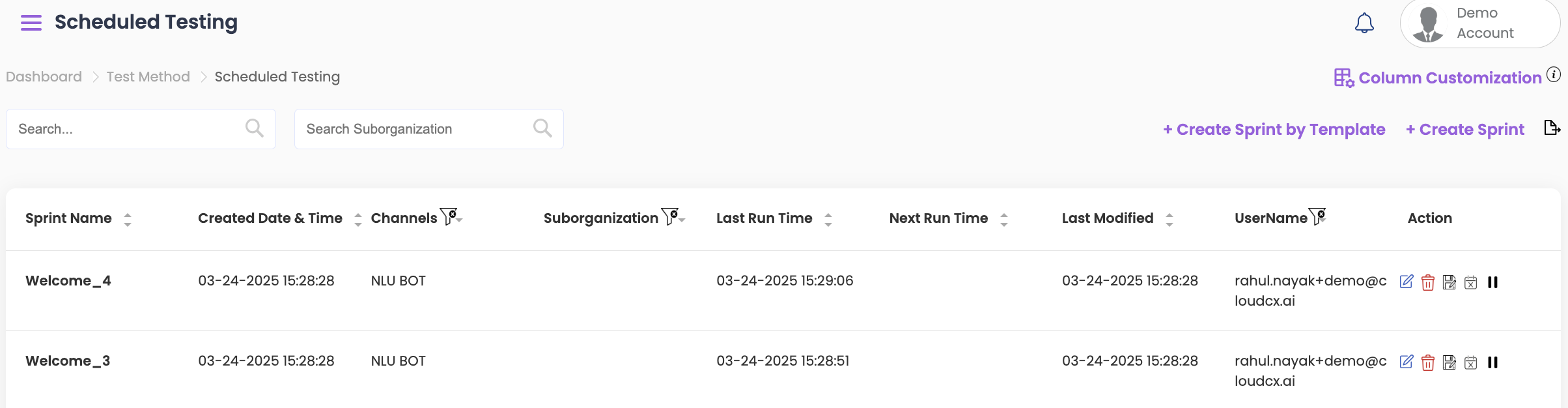
- QuickTest will automatically create the Services, Scripts, and Sprints in the Schedule Test Methods section.
- Go to Schedule Test Method and you will see your Sprint created there.
4. Review or Edit Services, Scripts, or Sprints #
- To review or make edits:
- Navigate to the Service, Script, or Schedule Test Method sections.
- Click Edit in the Action column to make changes.


